Configuring Promotions and Discounts
Last updated: October 5, 2026
Memberworks offers flexibility with promotions and discounts for your organization to meet the needs of those you serve.
To get started with adding a Promotion and Discount:
Click Financials Left Rail Item > Promotions > Add Promotion
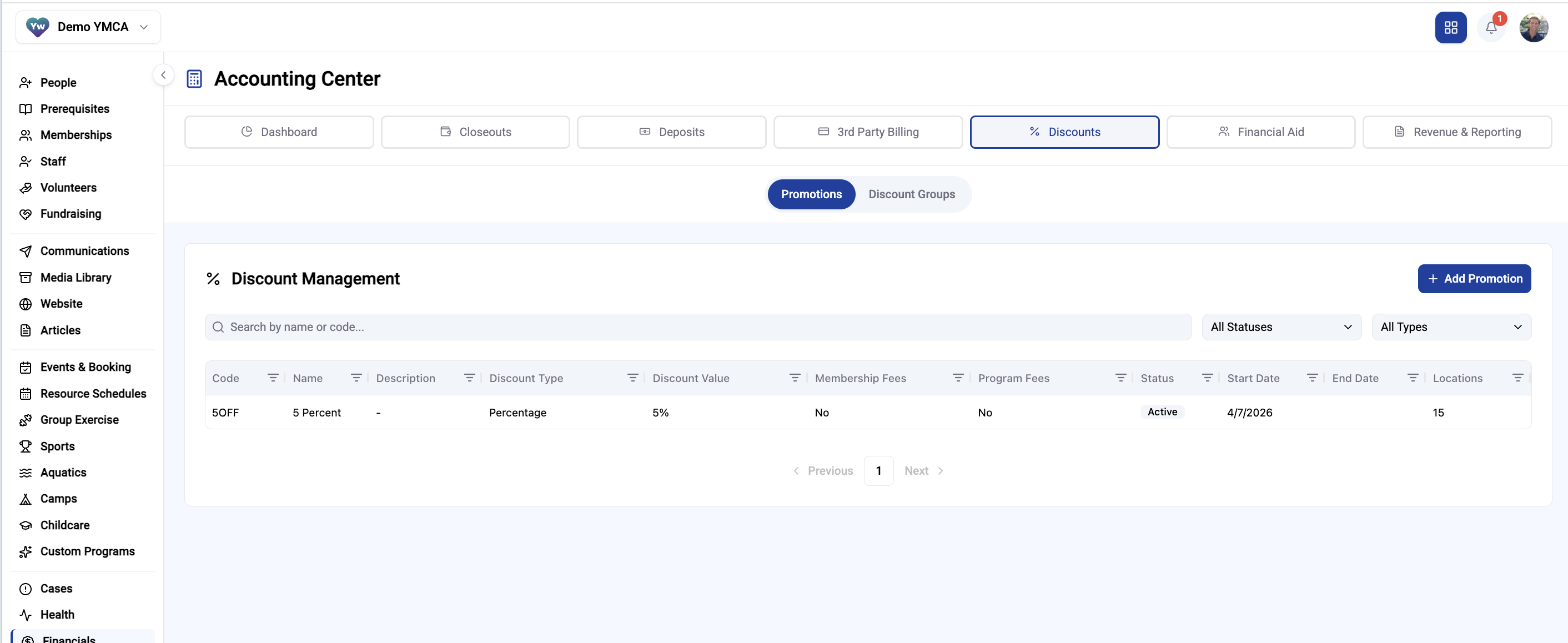
Enter and Configure all Promotion Information
Promotion Name: Name of the Promotion
Promotion Code: What people will type in to receive the Promotion
Description: Internal description of what the Promotion is
Discount Type: Choose between Percentage Off or Flat Rate
Discount Value: Value of the discount
Start Date: When the Promotion goes into effect
End Date: When the Promotion ends
Minimum Purchase: Configure if there is a minimum purchase amount required for the Promotion to work
Apply Discount To Programs:
All Programs: Discount can be used for any program
All Programs of a Specific Category: Discount can be used for programs of a specific program category (ex: camp, swim, sports, etc.)
Specific Programs: Discount can be used for a specific program of you're choosing
Apply Discount to Memberships:
All Memberships: Discount can be used for every membership
Specific Membership Types: Discount can be used for specific membership types
Specific Membership Subtypes: Discount can apply to certain subtypes within a membership
Apply Discount to Reservations:
All Reservations: Discount can be used for every reservation
Specific Reservations: Make a discount usable for only a specific reservation
Branches & Sites: Select which Branches & Sites the discount can apply to
Click Create Promotion