Viewing a Child's Profile
Last updated: October 5, 2026
There are two ways into a child's information.
The program roster shows you everything about this child in this program.
The People record shows you everything about this child at your Y.
Which view to use
Pickup authorization or an allergy check during camp: the program roster
"What time did my child get here?": The program roster
Moving a child to a different session or dropping them: The program roster
A missing waiver you need the parent to sign: either view works, but the Prerequisites tab on the People record has a Send link button and the full history.
Anything about the household, siblings, or who the primary adult is: either view works
Medical detail beyond allergies: the Health tab on the People record.
From the program roster
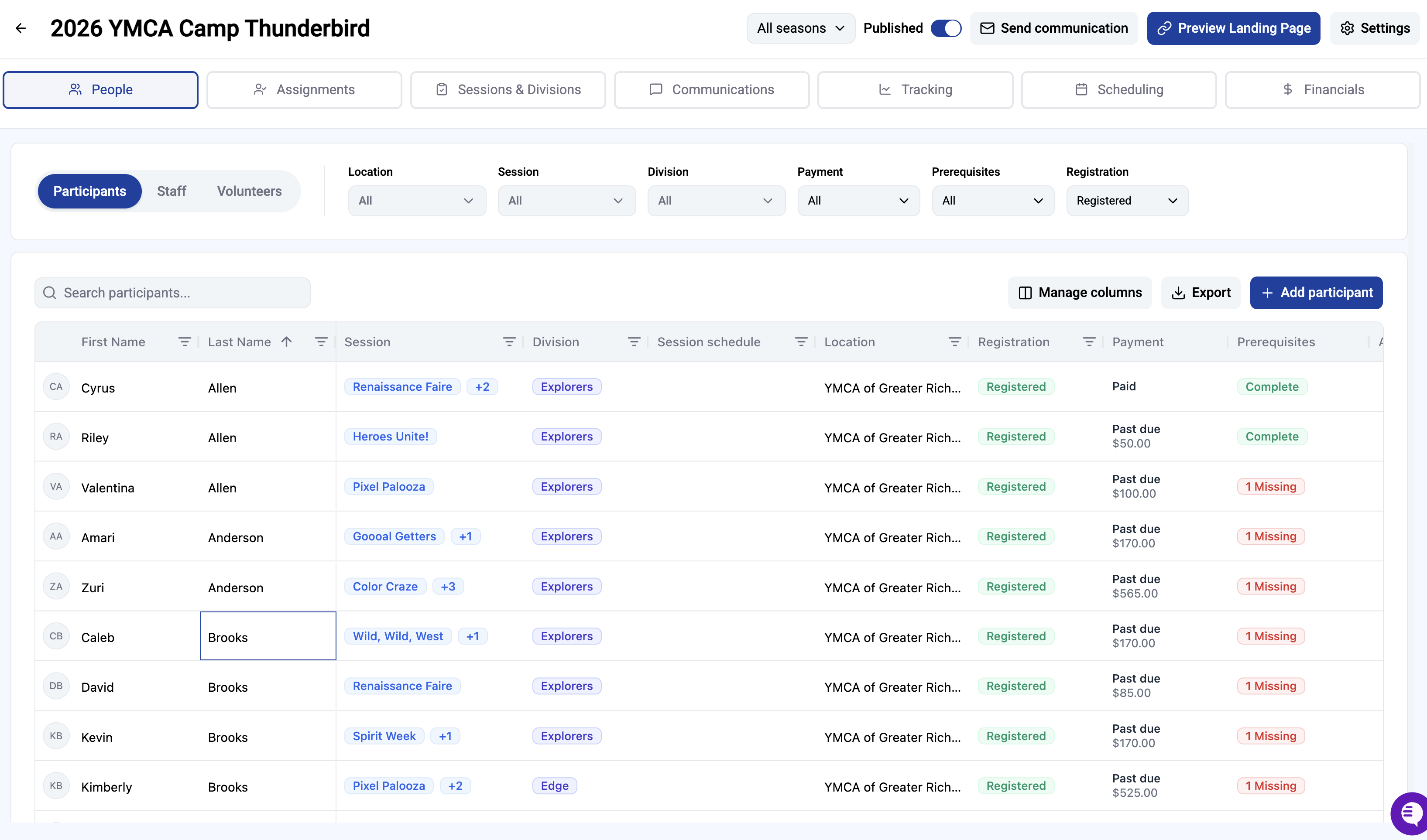
Open the program and click the People tab.
You'll see every participant with filters across the top for location, session, division, payment, prerequisites, and registration status. Use the toggle to switch between Participants, Staff, and Volunteers. The table shows each child's session, division, location, registration status, payment status, and whether prerequisites are complete or missing, so you can often answer a question without opening anyone's record.
Click a child's name to open their participant view.
What's on the participant view
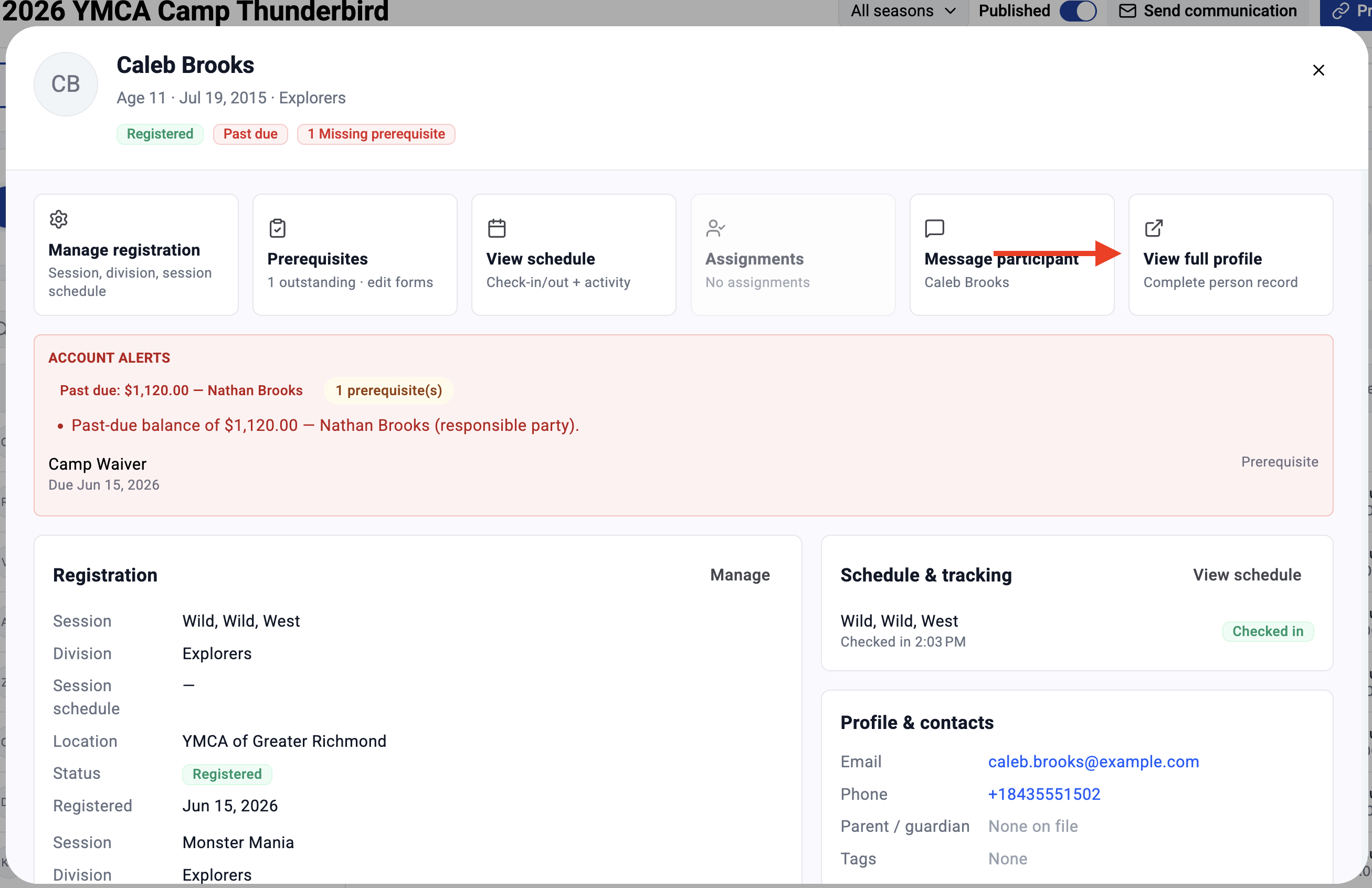
The top shows the child's name, age, date of birth, and division, with statuses for registration, payment, and any missing prerequisites.
Account alerts sit right below in red when something needs attention. This is where a past-due balance shows up, along with the name of the responsible party, plus any outstanding prerequisites and their due dates. Useful detail for camp staff: the balance is attached to the responsible adult, not the child, and the alert names that adult.
Further down the participant view
If you scroll down on the participant record, you will find the following information:
Registration lists each session the child is enrolled in with division, location, status, and registration date.
Schedule & tracking shows today's check-in at a glance.
Profile & contacts holds email, phone, parent or guardian, tags, emergency contact, authorized pickup, and allergies. For a pickup question or an allergy check, this card answers it without leaving the program.
Financial shows the outstanding balance, next payment date, and payment status.
Prerequisites repeats the three-column breakdown with a See all link.
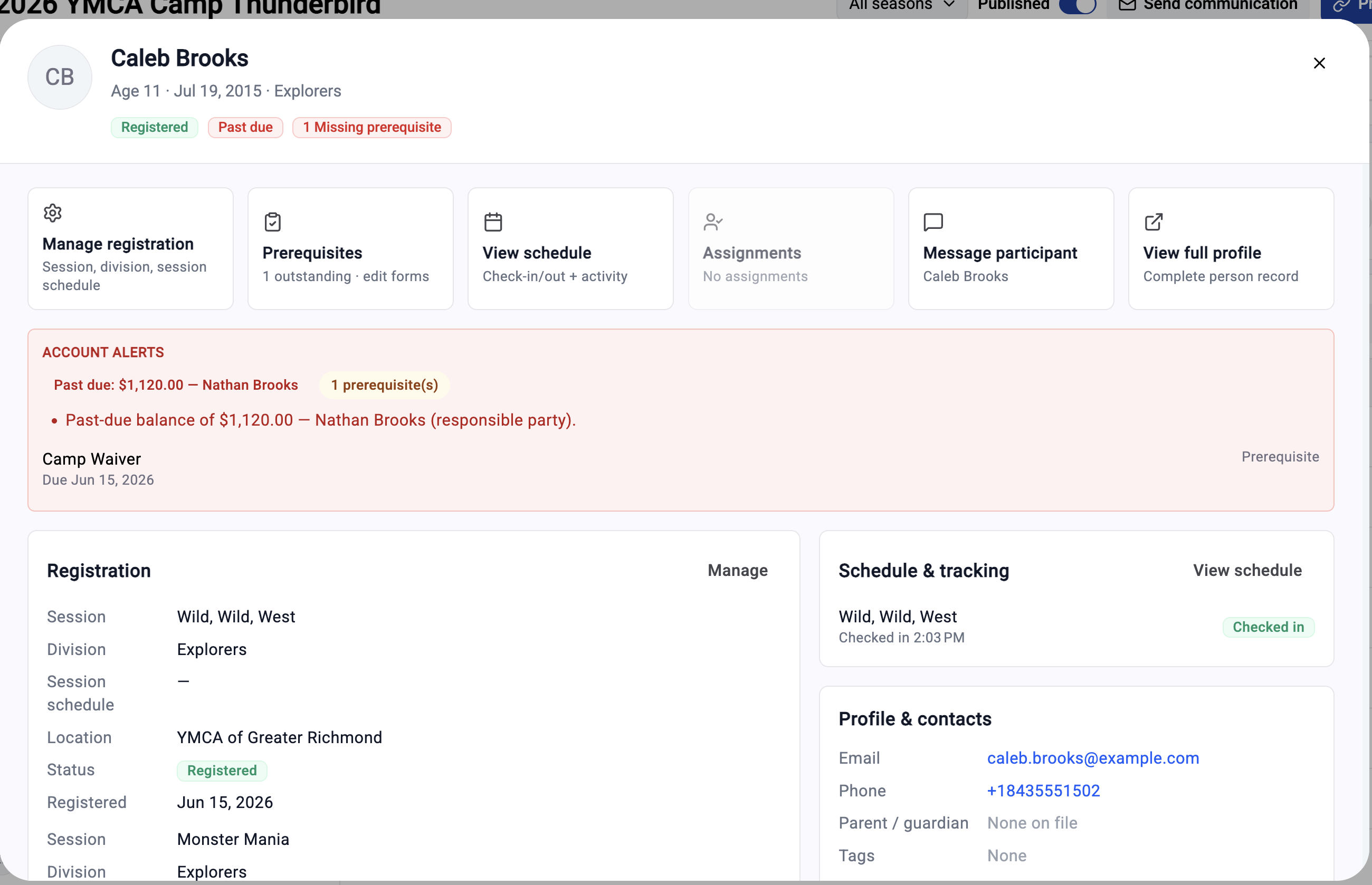
The six tiles at the top of the record give you available actions for this participant:
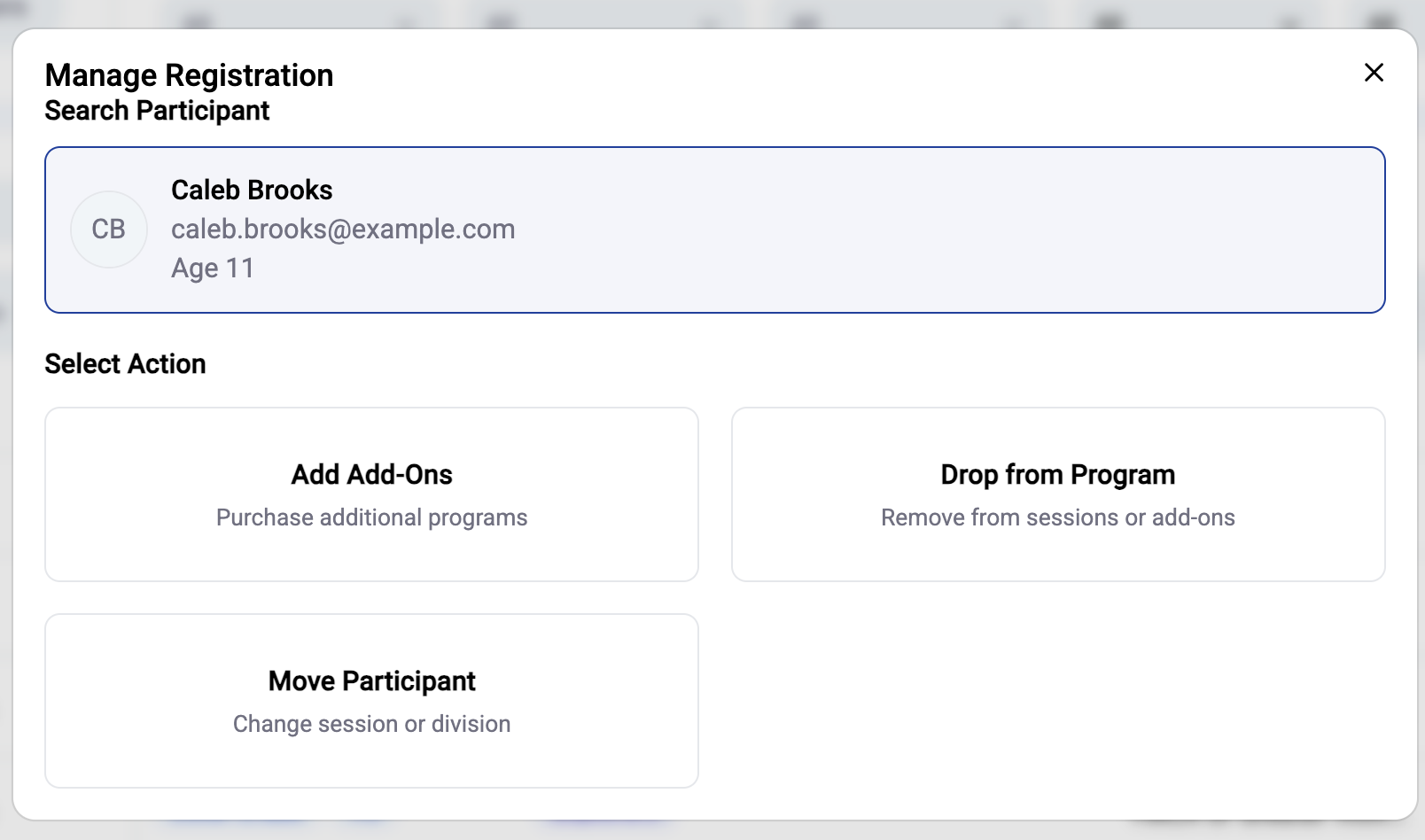
Manage registration opens three options. Add Add-Ons purchases additional programs, Drop from Program removes the child from sessions or add-ons, and Move Participant changes their session or division.
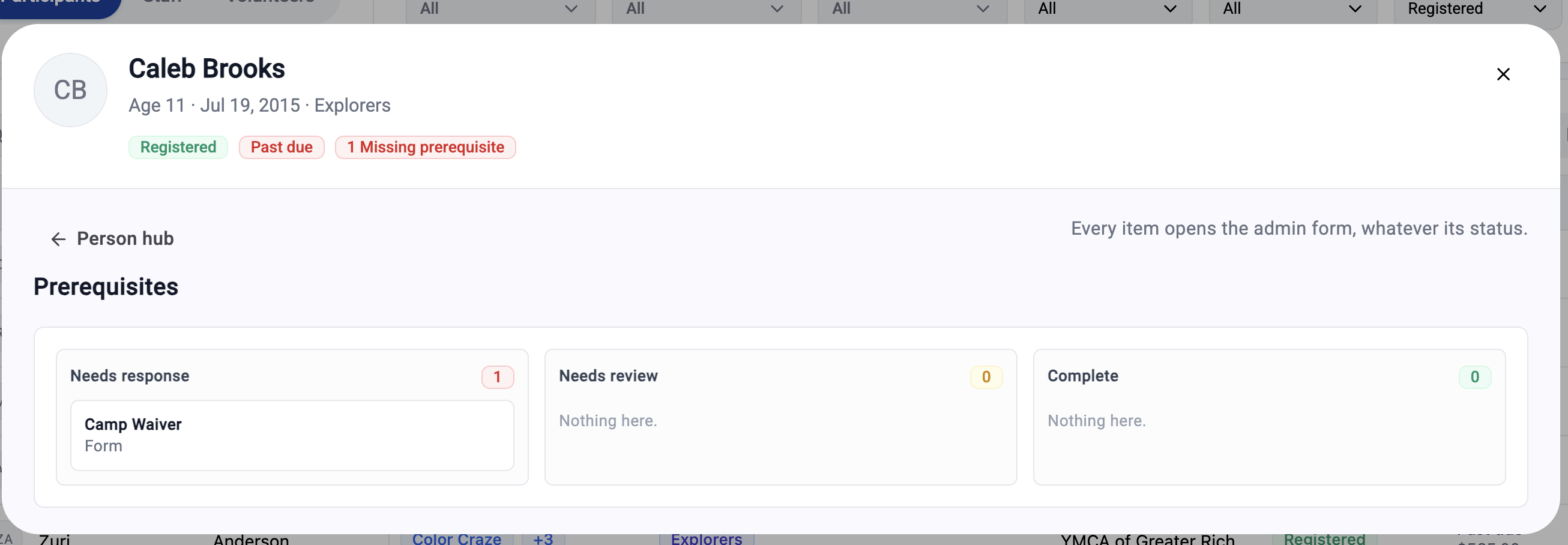
Prerequisites shows outstanding forms sorted into Needs response, Needs review, and Complete. Any item opens the admin form regardless of its status, so you can fill one out with a parent standing there.
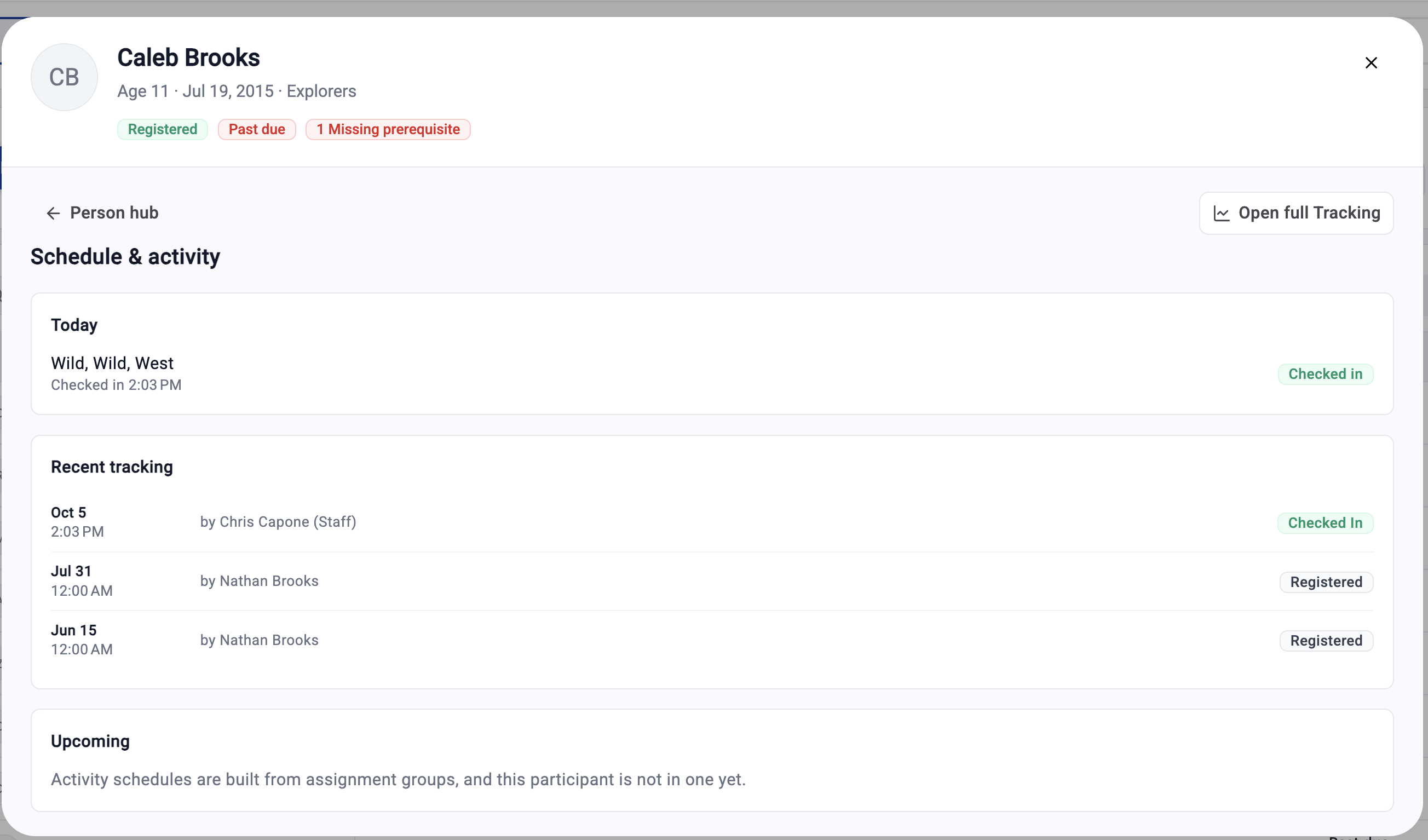
View schedule is the check-in and check-out history for this program. You get today's status, recent tracking entries with timestamps and who recorded each one, and upcoming activity. This is the screen to use when a parent asks what time their child arrived, since it names the staff member who checked them in.
Assignments shows which groups the child has been assigned to, if any.
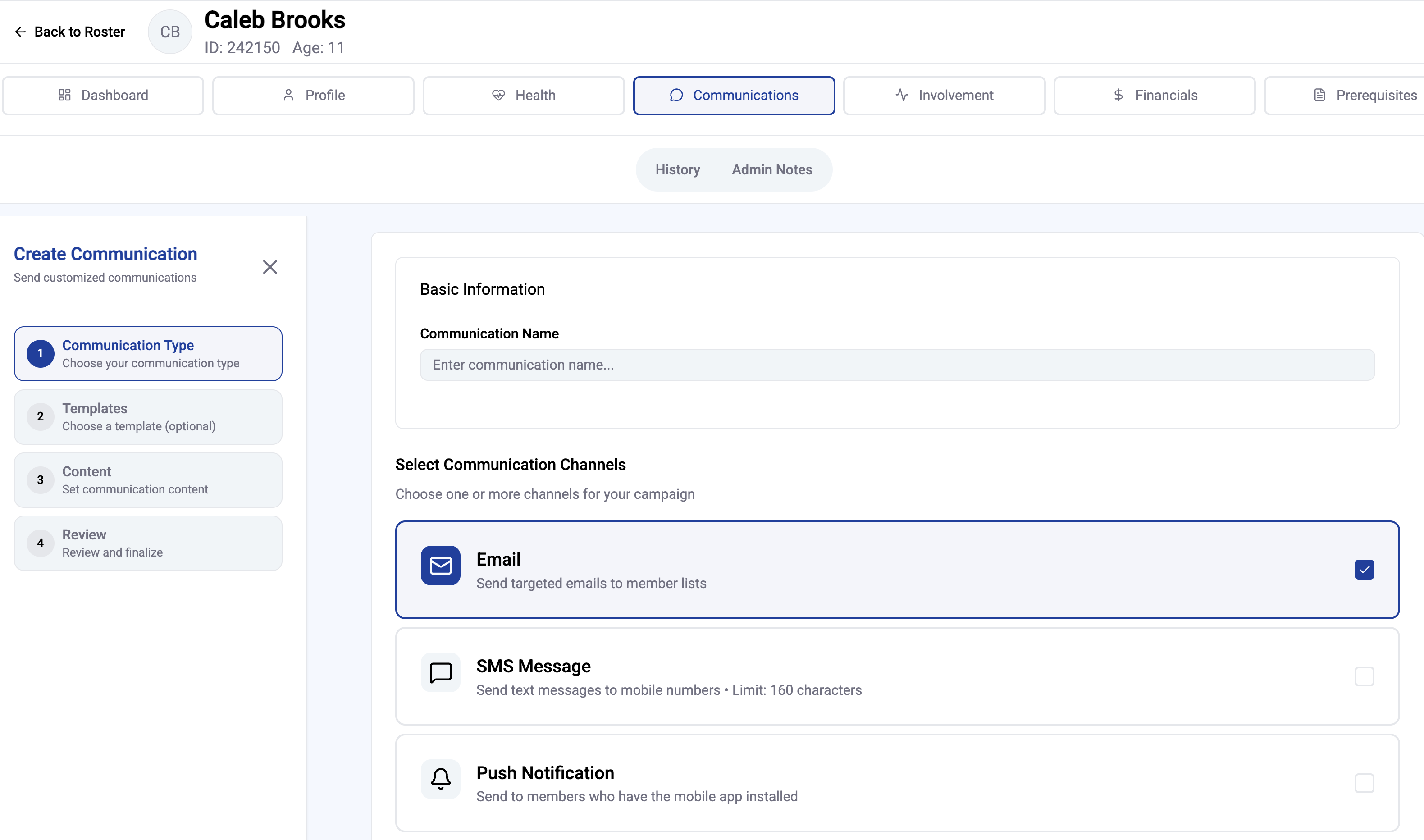
Message participant sends a message from here.
View full profile jumps to their complete person record, covered in the next section.
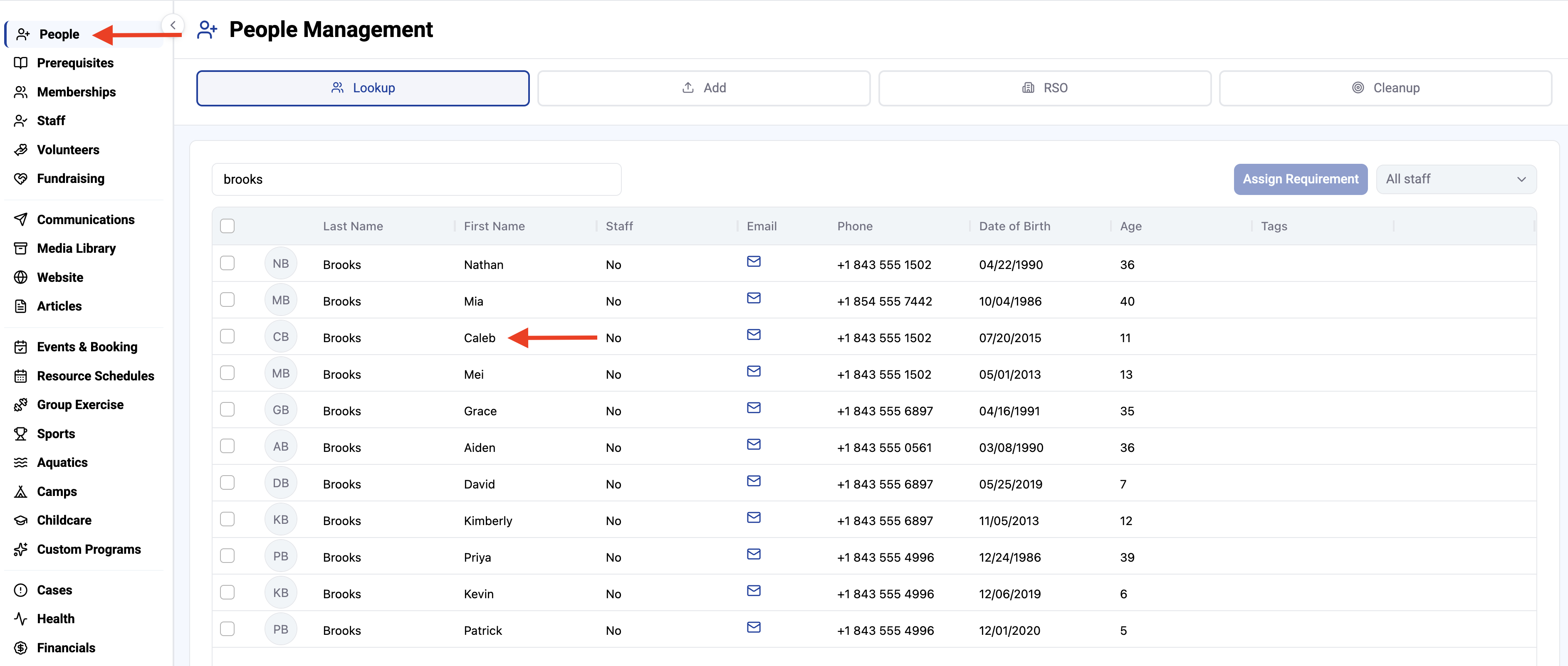
To view a participant From the People roster
Click People in the left rail menu, search for the child, and open their record. You can also get here with View full profile from the participant view.
This is the complete person record, organized into tabs.
Dashboard gives you personal information, membership status, tags, and a to-do list of outstanding prerequisites. Overdue items have a Send link action that sends the form to the parent, which is the fastest way to chase a missing waiver. Quick Actions on the right handle email, tasks, family, cases, and membership.
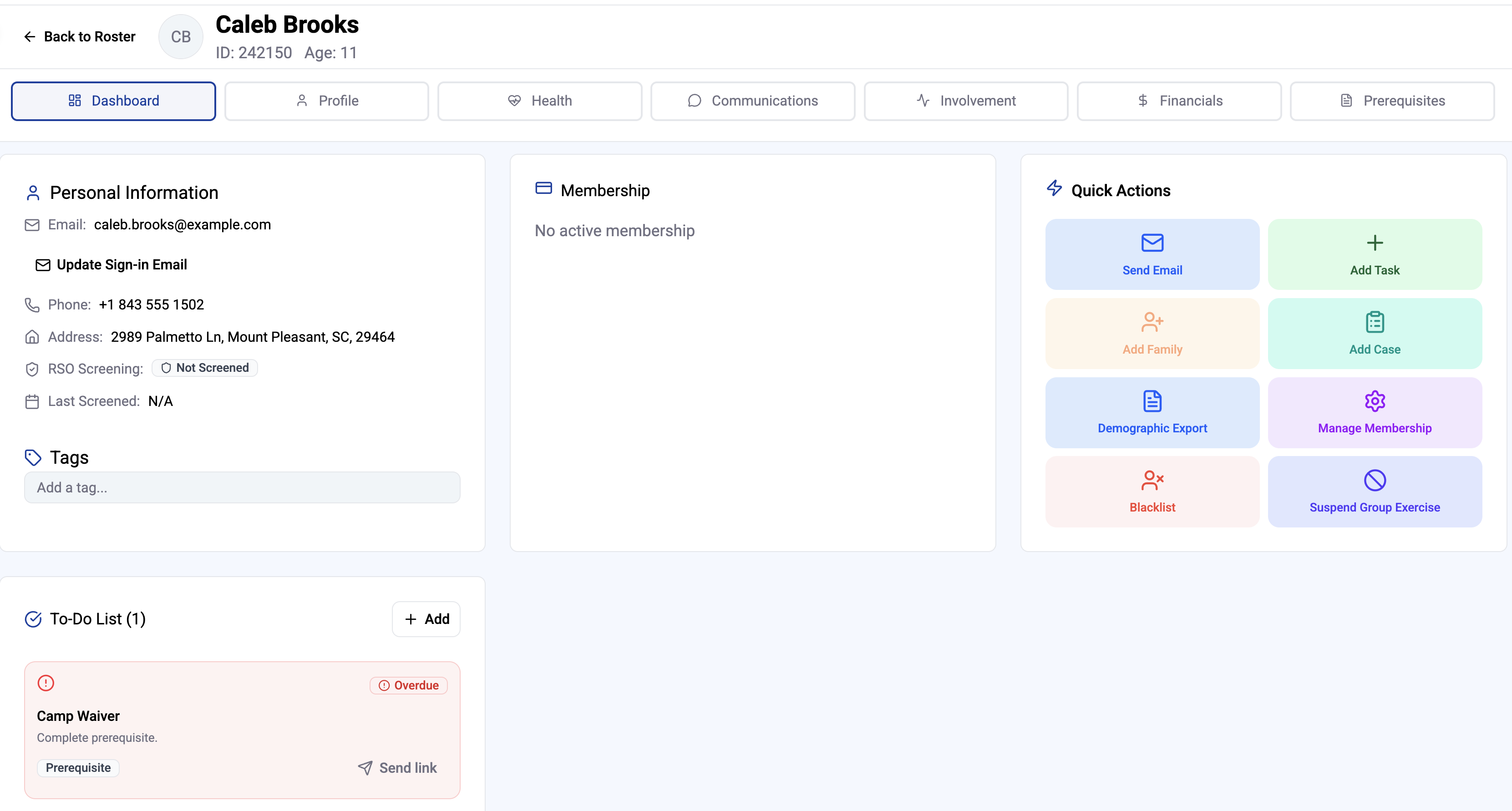
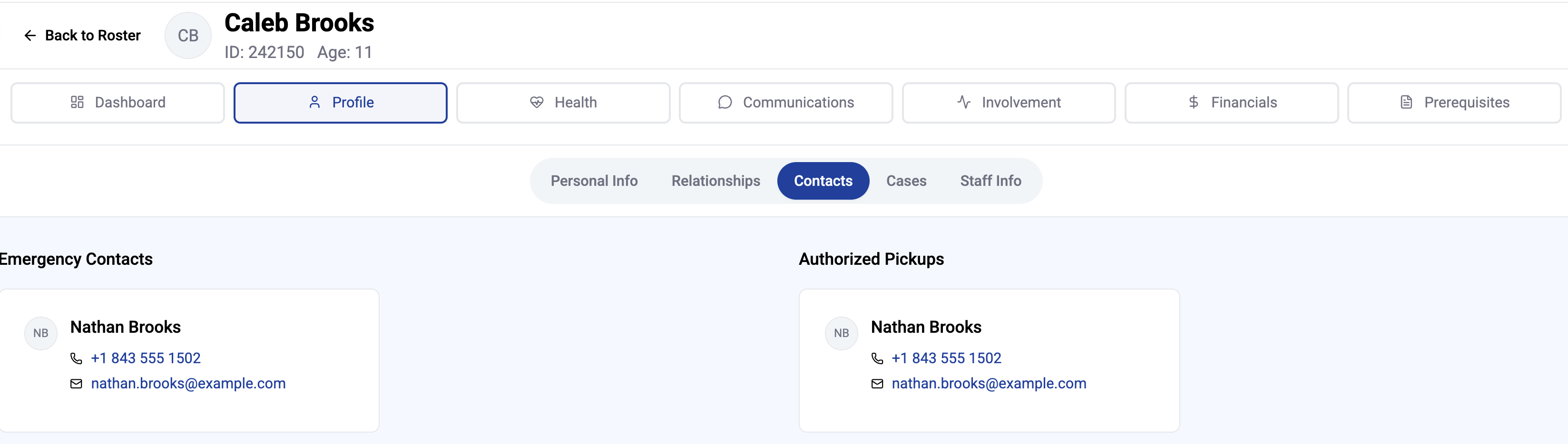
Profile holds the identity and household information across five sub-tabs:
Personal Info has name, email, mobile, date of birth, address, barcode ID, and legacy member ID. Edit Profile unlocks the fields, and you can upload a profile photo here.
Relationships maps the household. Adults and guardians appear with their ages, relationship types, and whether they hold an active membership, with the primary marked. Children are listed below. Filter to Household or Other Relationships, or add one with Add Relationship.
Contacts is the authoritative list of emergency contacts and authorized pickups, each with phone and email.
Cases and Staff Info round out the tab.
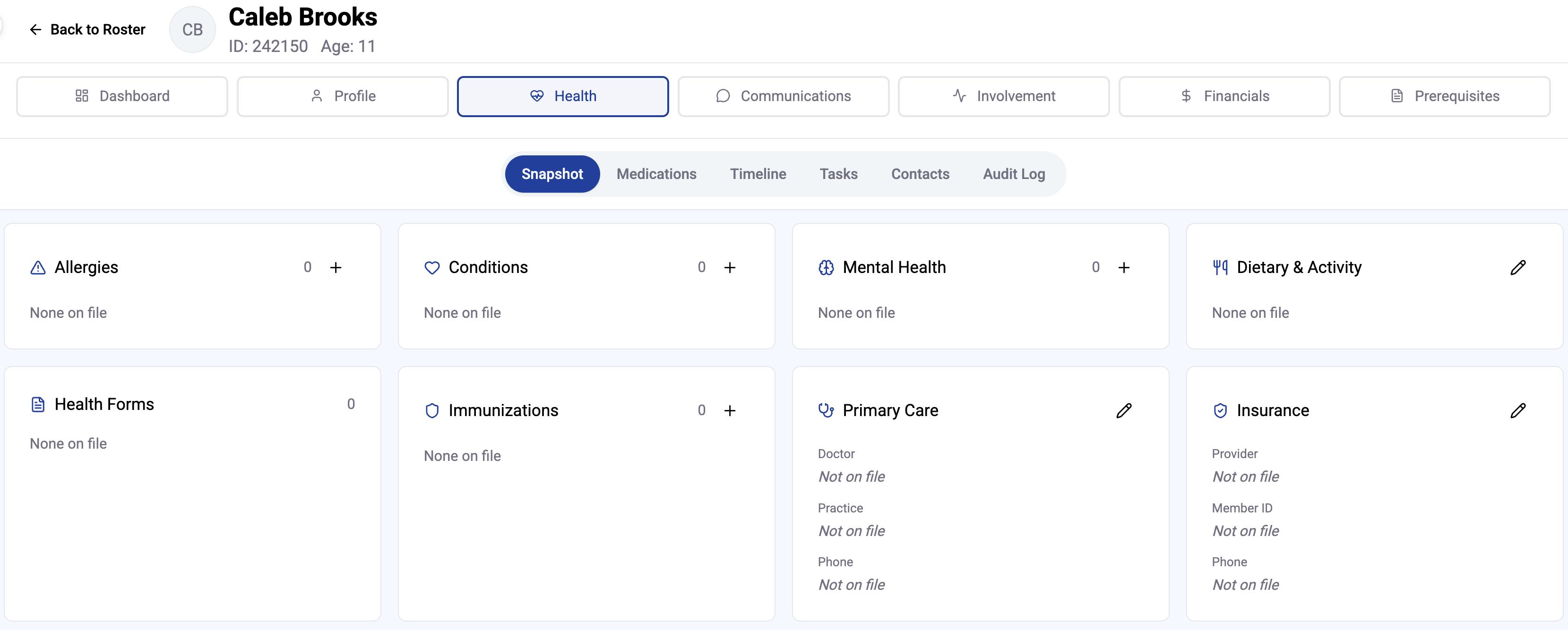
Health is where medical information lives, across Snapshot, Medications, Timeline, Tasks, Contacts, and an Audit Log. The Snapshot shows allergies, conditions, mental health, dietary and activity notes, health forms, immunizations, primary care, insurance, and dental, with a count on each card and a plus to add an entry. The audit log records who viewed or changed what, which matters given how sensitive this tab is.
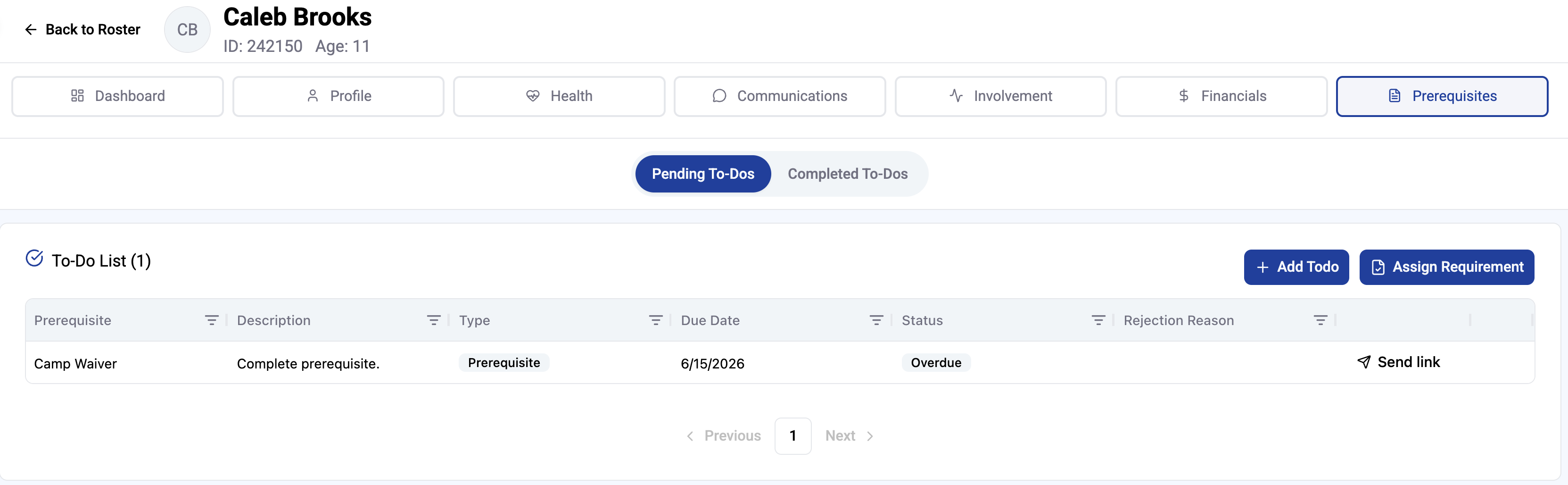
Prerequisites lists every to-do for this child, split into Pending and Completed. The table shows the prerequisite, description, type, due date, status, and a rejection reason when a submitted form was turned down. Send link chases the parent, Add Todo creates a one off, and Assign Requirement attaches a standard requirement.
Communications, Involvement, and Financials cover message history, program participation, and billing.