Starting and Closing a Shift
Last updated: October 5, 2026
Any time you take a cash or check payment at the desk, Memberworks needs to know which cash drawer that money went into. That's what a shift does. It ties every cash and check payment you record to you, your branch, and your drawer, so the money can be counted, reconciled, and deposited at the end of the day.
You can't record a cash or check payment without an active shift, so the easiest habit is to start one as soon as you clock in, whether or not you expect to handle cash that day.
This article walks through the full cycle: starting a shift, taking a payment, ending your shift, closing out your drawer, and recording the deposit.
Start your shift
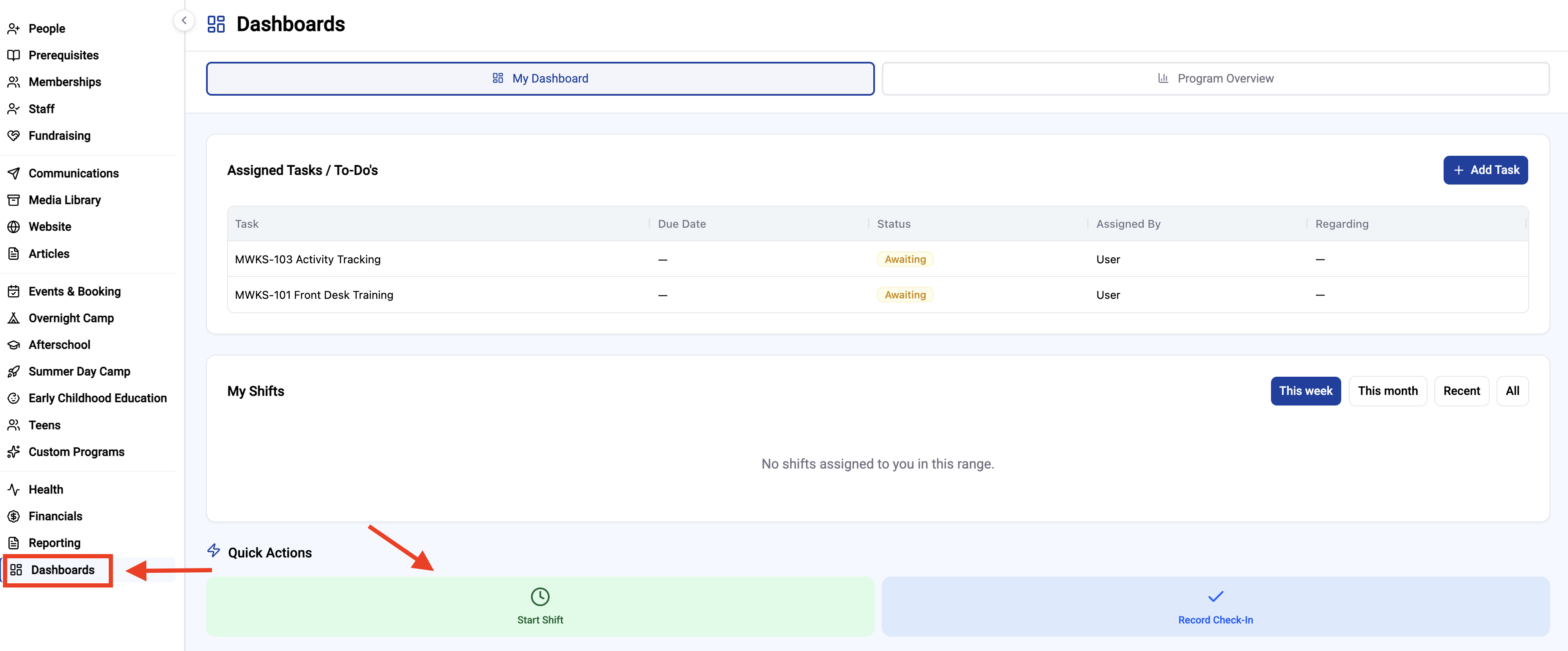
Click Dashboards in the left rail menu. You'll land on My Dashboard.
Under Quick Actions at the bottom of the page, click Start Shift.
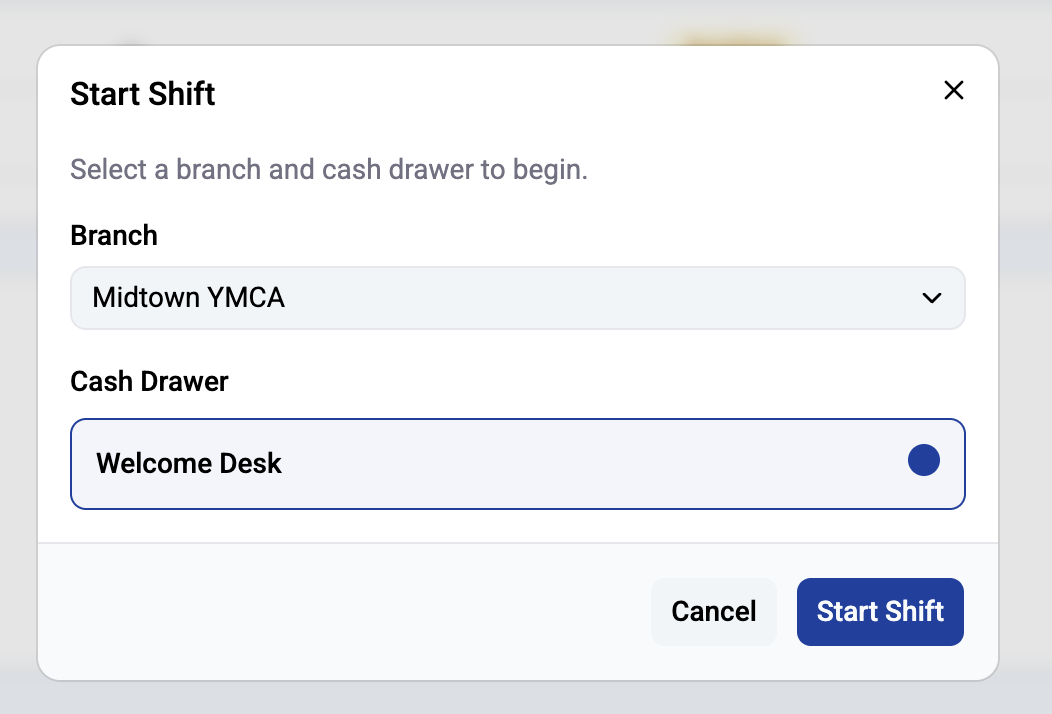
Choose your Branch from the dropdown, then select the Cash Drawer you're working from. Click Start Shift.
The Quick Actions area now shows a green Shift active card with your cash drawer, location, and the time your shift started. The Start Shift button changes to End Shift. If you ever aren't sure whether your shift is running, this is the place to check.
Take a cash or check payment
In this example, a member wants to pay a past due program invoice in cash.
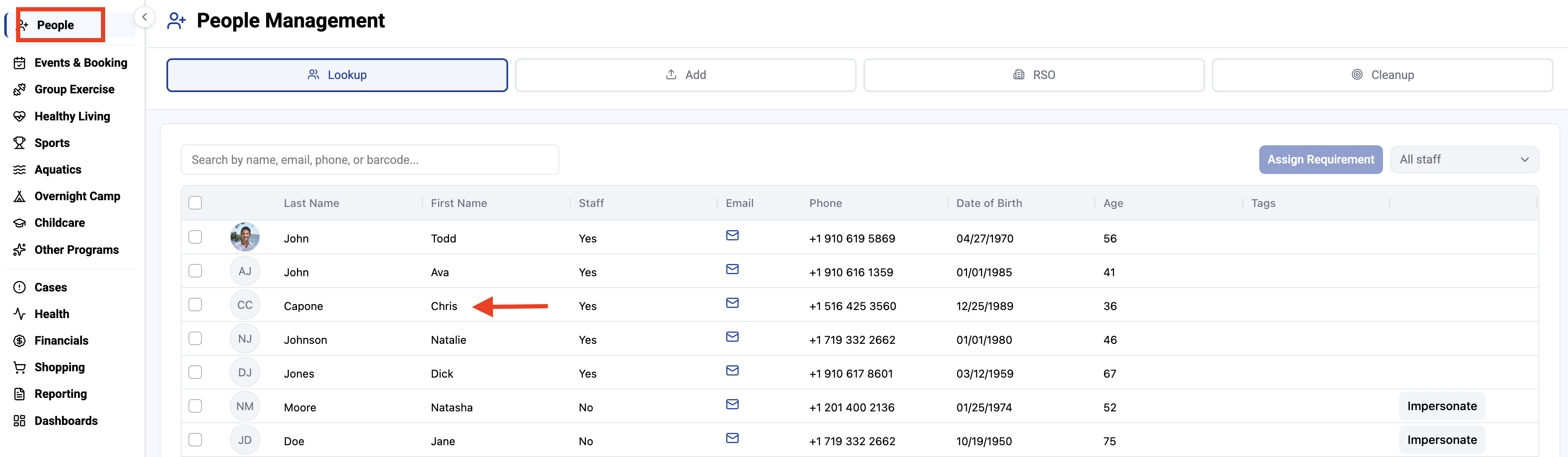
Click People in the left rail menu. Search by name, email, phone, or barcode, then click the person's name to open their profile.
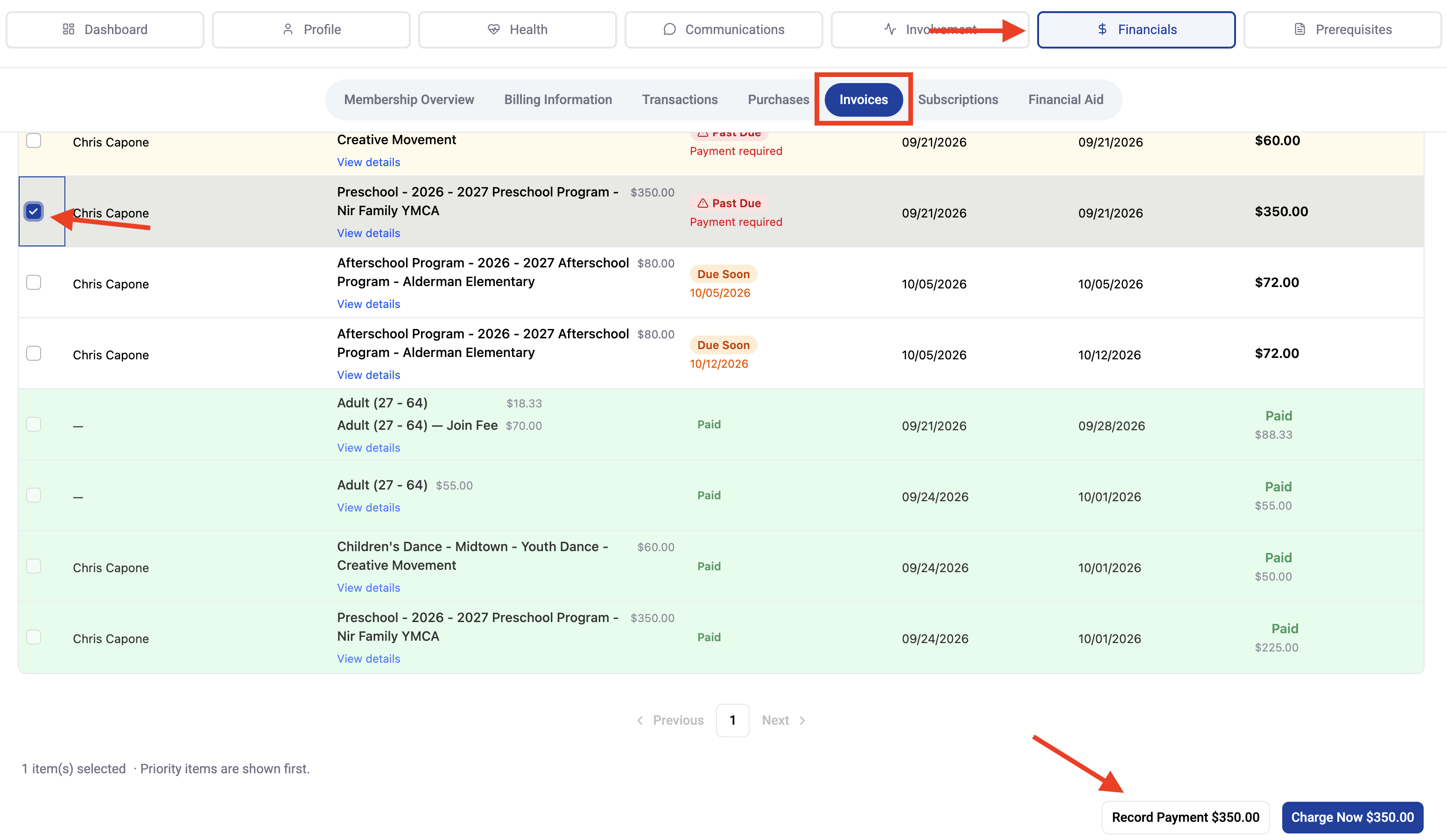
Click the Financials tab on their profile, then click Invoices. Past due and upcoming invoices are listed first, with a status badge on each (Past Due, Due Soon, or Paid).
Check the box next to each invoice the member is paying. The buttons at the bottom of the list update to show the total for what you've selected.
Click Record Payment.
Choose the Payment Type: Cash, Check, or Other. Add a note if it's useful, such as who dropped off the payment.
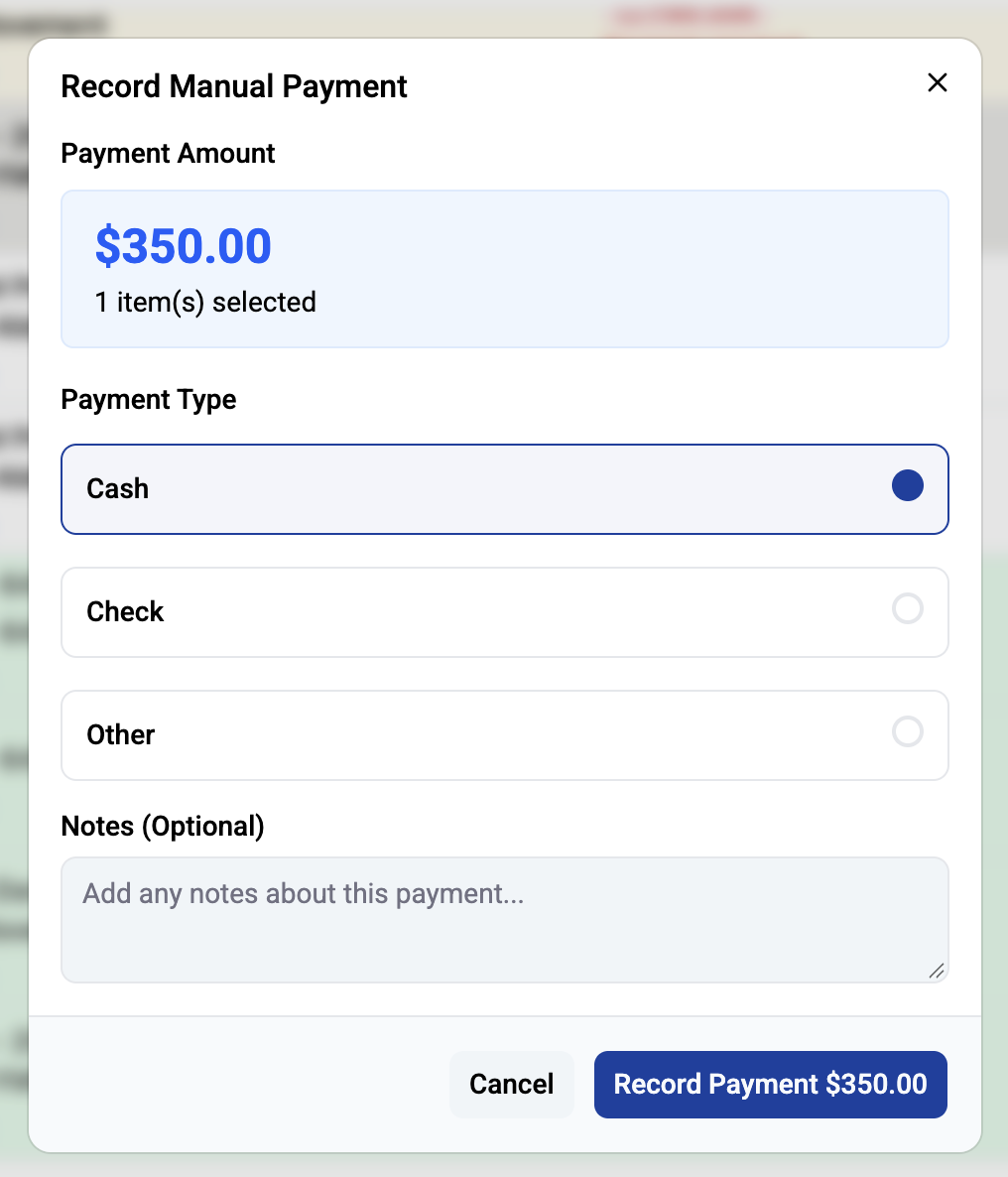
Click Record Payment, review the amount, payment type, and items on the confirmation screen, then click Confirm Payment.
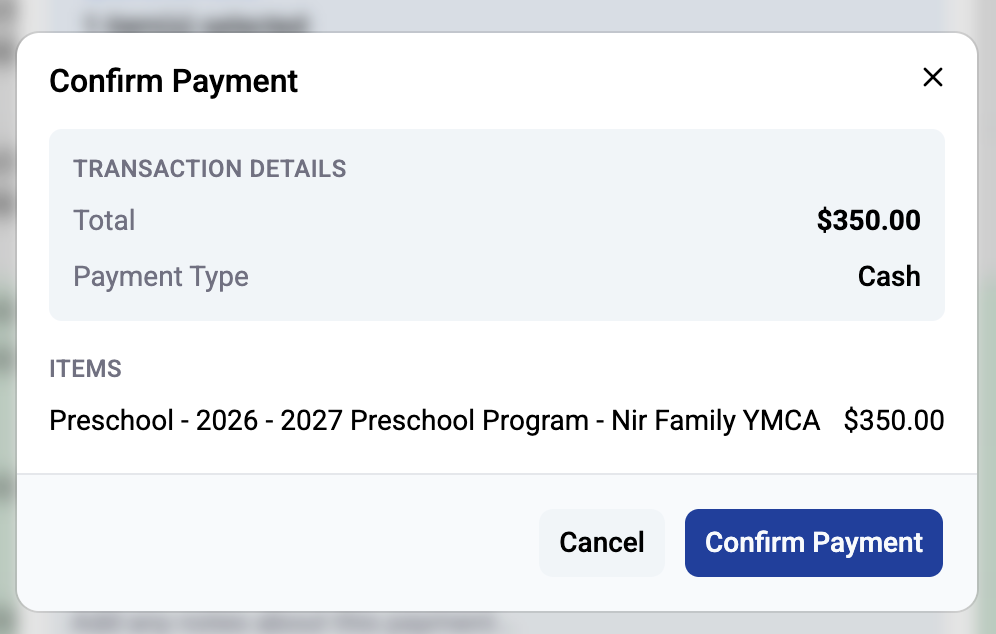
The invoice is marked paid, and the payment is added to your shift so it shows up when you close out your drawer.
Use Record Payment for money you're physically taking at the desk. Charge Now is a separate option and doesn't go into your cash drawer.
End your shift
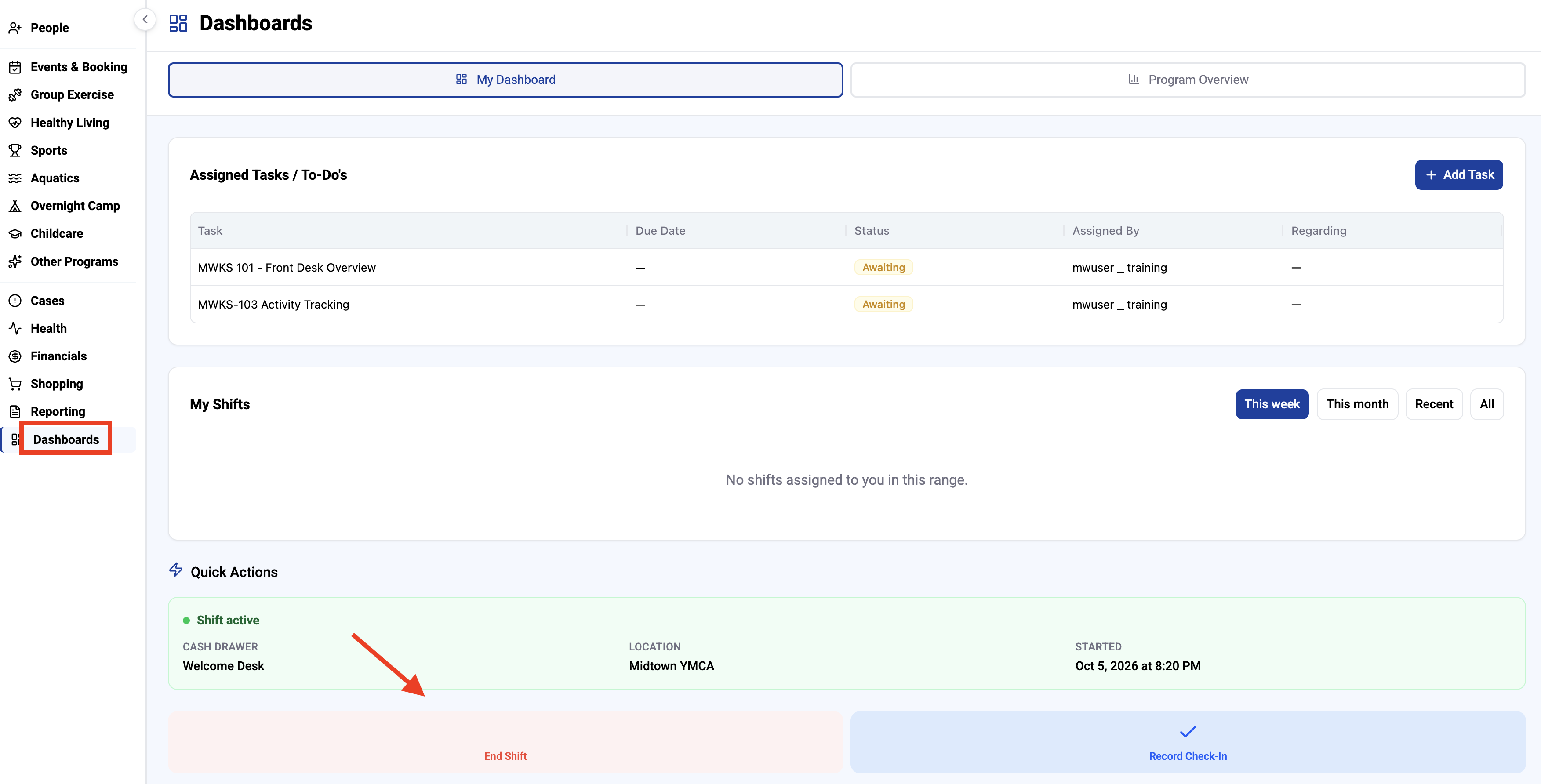
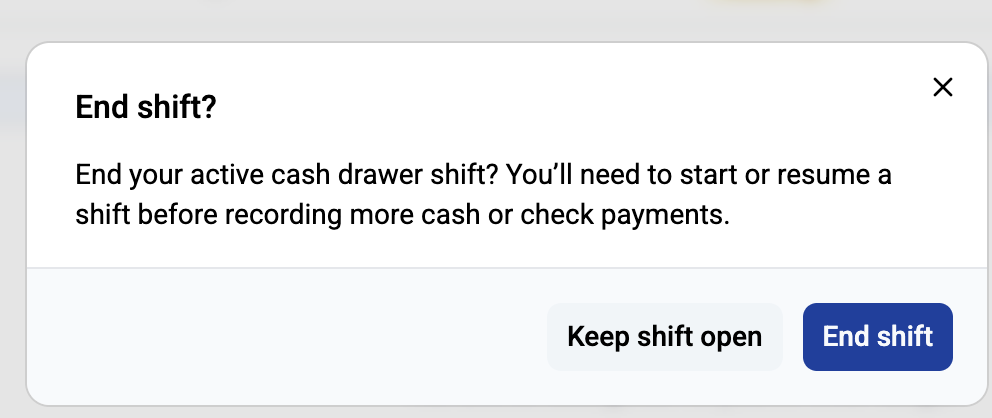
At the end of the day, or whenever you hand off the drawer, go back to Dashboards in the left rail menu and click End Shift under Quick Actions. Confirm by clicking End shift.
If you still have payments to take, click Keep shift open instead. Once a shift is ended, you'll need to start or resume one before you can record any more cash or check payments.
Close out your drawer
Ending your shift stops new payments from landing in your drawer. The closeout is where you count what's actually there and confirm it matches what Memberworks recorded.
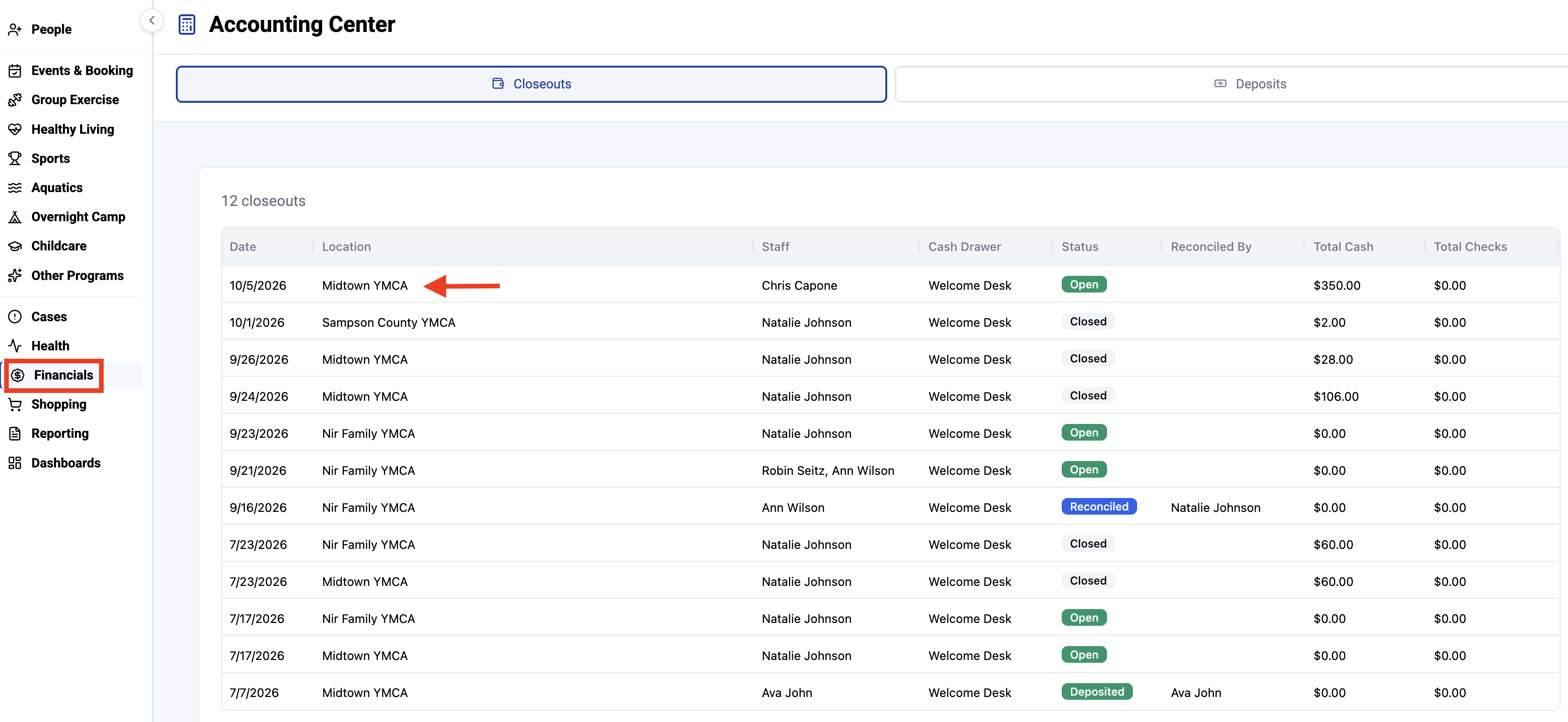
Click Financials in the left rail menu. This opens the Accounting Center on the Closeouts tab.
Find your closeout in the list. It shows the date, your branch, your name, your cash drawer, and a status of Open. Click it to begin.
Step 1: Cash Reconciliation
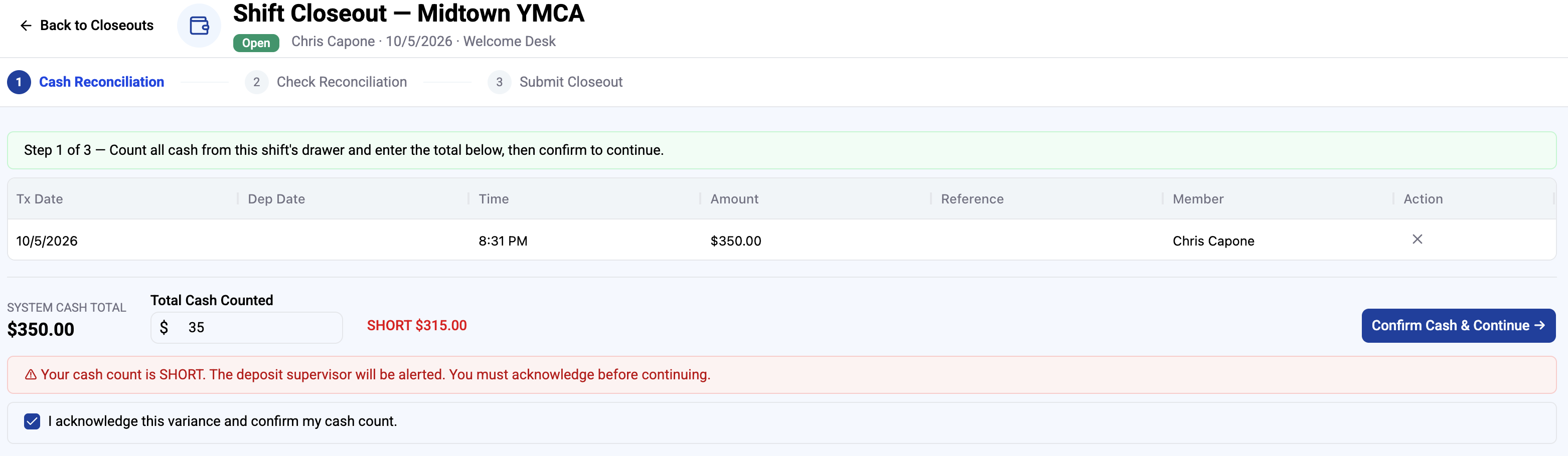
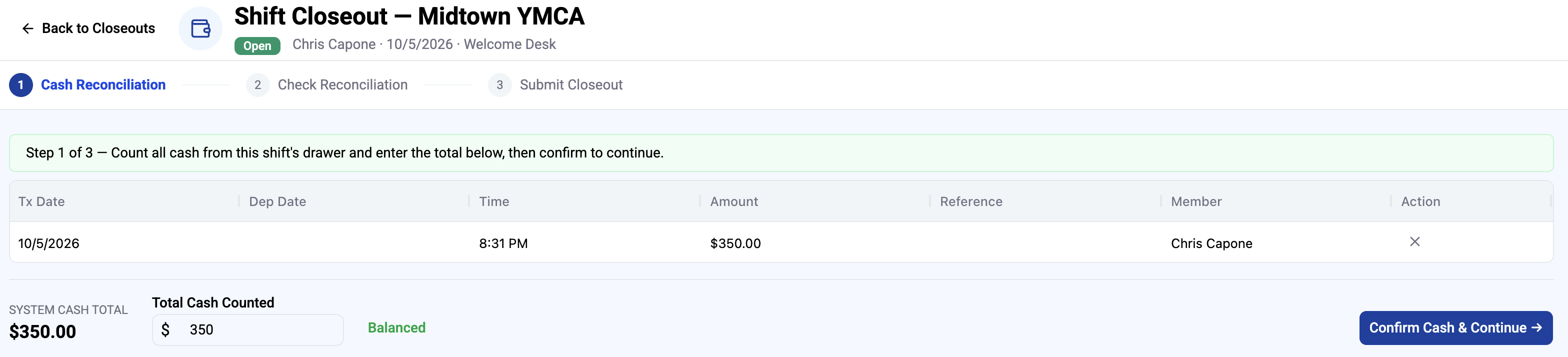
You'll see every cash payment recorded during your shift, along with the System Cash Total.
Count all the cash in your drawer and enter the amount in Total Cash Counted.
If your count matches, you'll see Balanced. Click Confirm Cash & Continue.
If your count doesn't match, Memberworks shows how far off you are (for example, SHORT $315.00) and lets you know the deposit supervisor will be alerted. Recount before doing anything else. A typo in the amount is the most common cause. If the count is still off, check the box to acknowledge the variance, then click Confirm Cash & Continue.
Step 2: Check Reconciliation
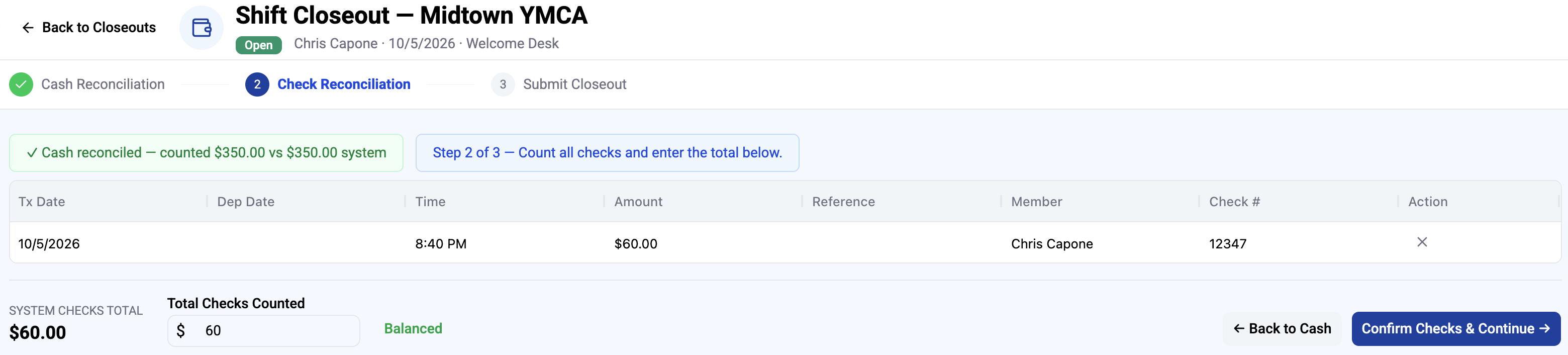
This works the same way. You'll see every check recorded during your shift, including the check number, and the System Checks Total. Count your checks, enter the total in Total Checks Counted, and click Confirm Checks & Continue once it shows Balanced.
If you need to fix your cash count, click Back to Cash.
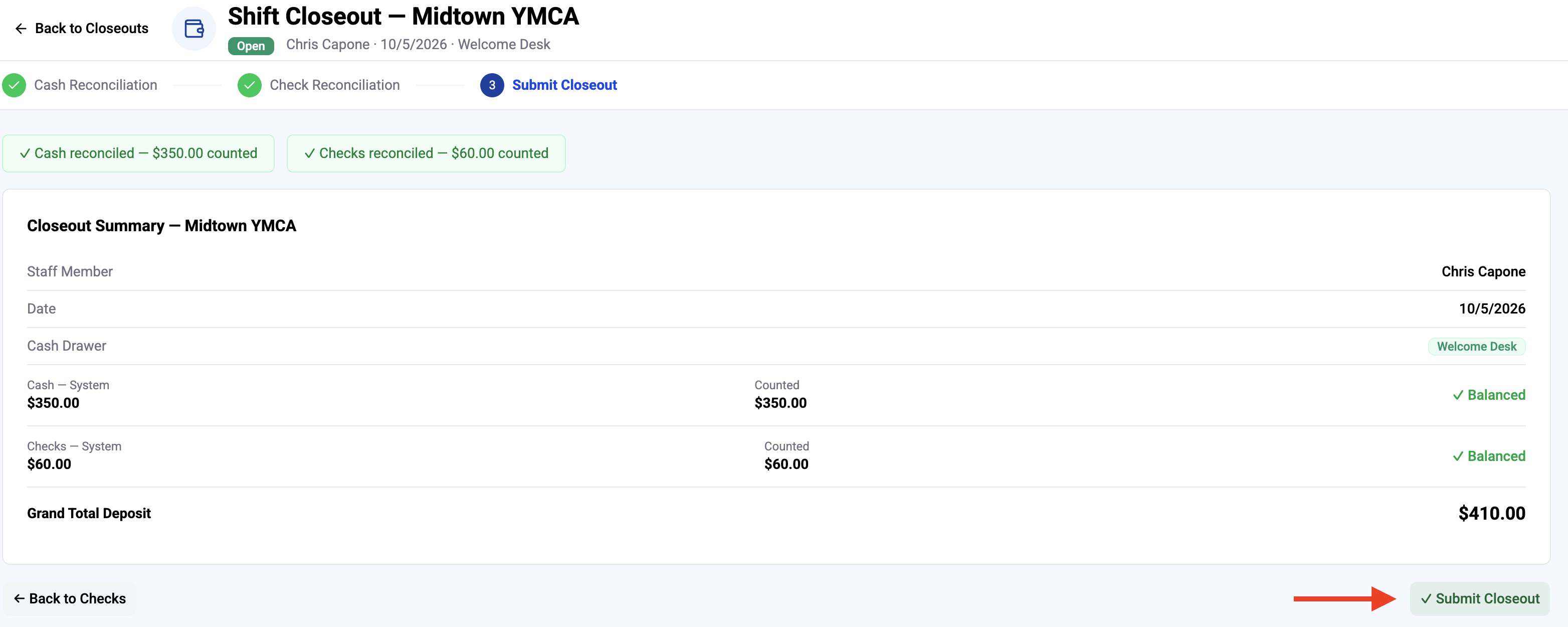
Step 3: Submit Closeout
Review the summary. It shows your cash and check totals, whether each one balanced, and the Grand Total Deposit. When everything looks right, click Submit Closeout.
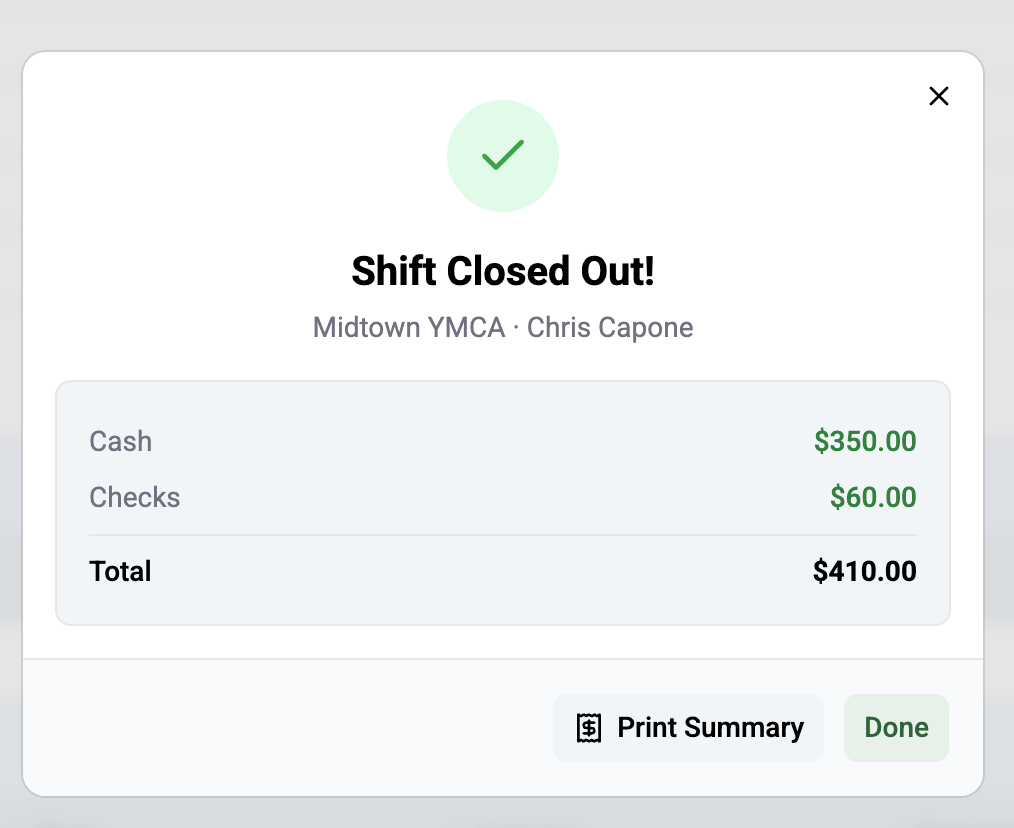
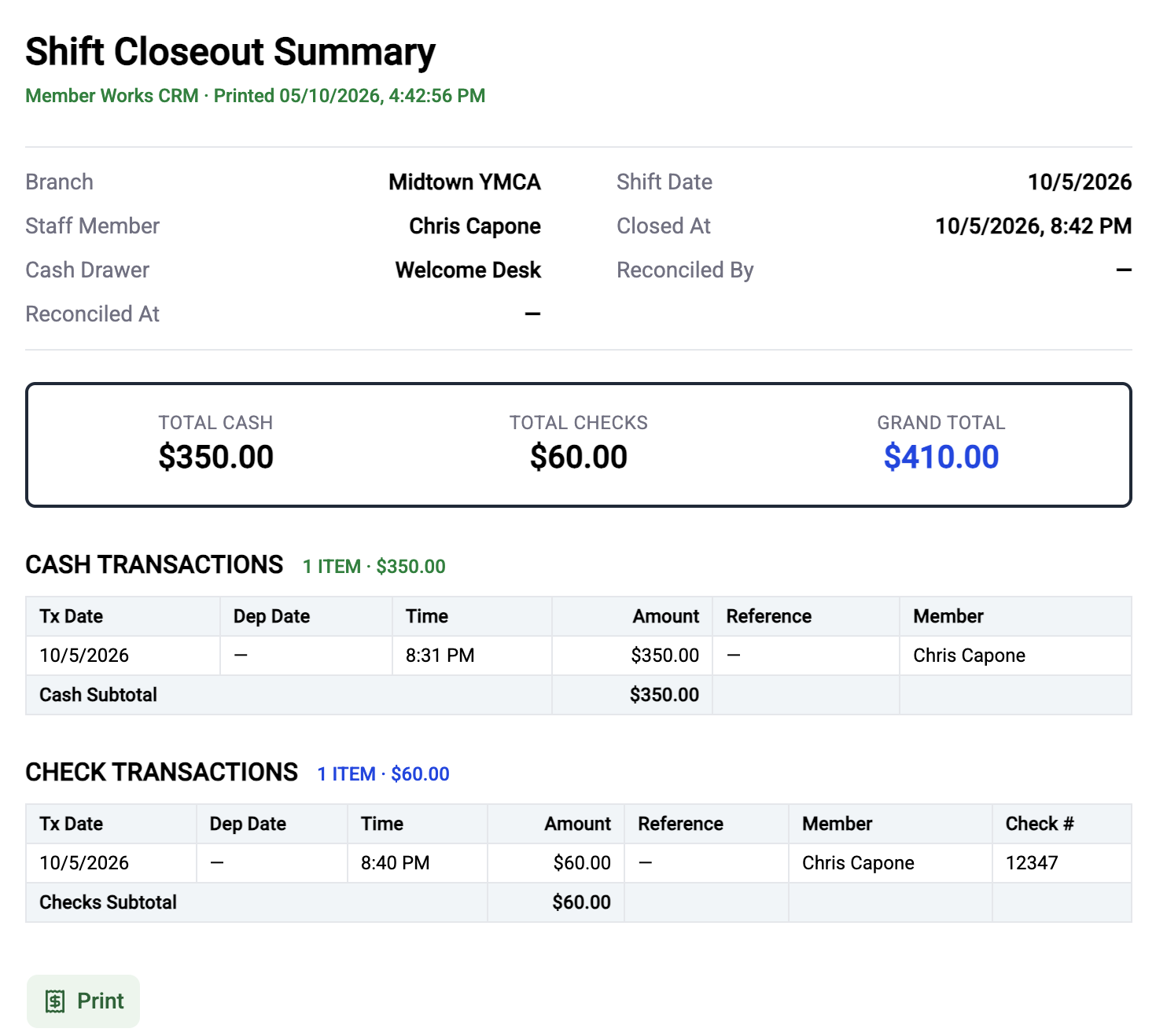
You'll see a Shift Closed Out! confirmation. Click Print Summary if your branch keeps a paper copy with the drawer, then click Done. Your closeout status changes from Open to Closed.
Record the deposit
Once closeouts are submitted, the deposit can be reconciled and taken to the bank. Depending on your branch, this may be handled by a supervisor rather than front desk staff.
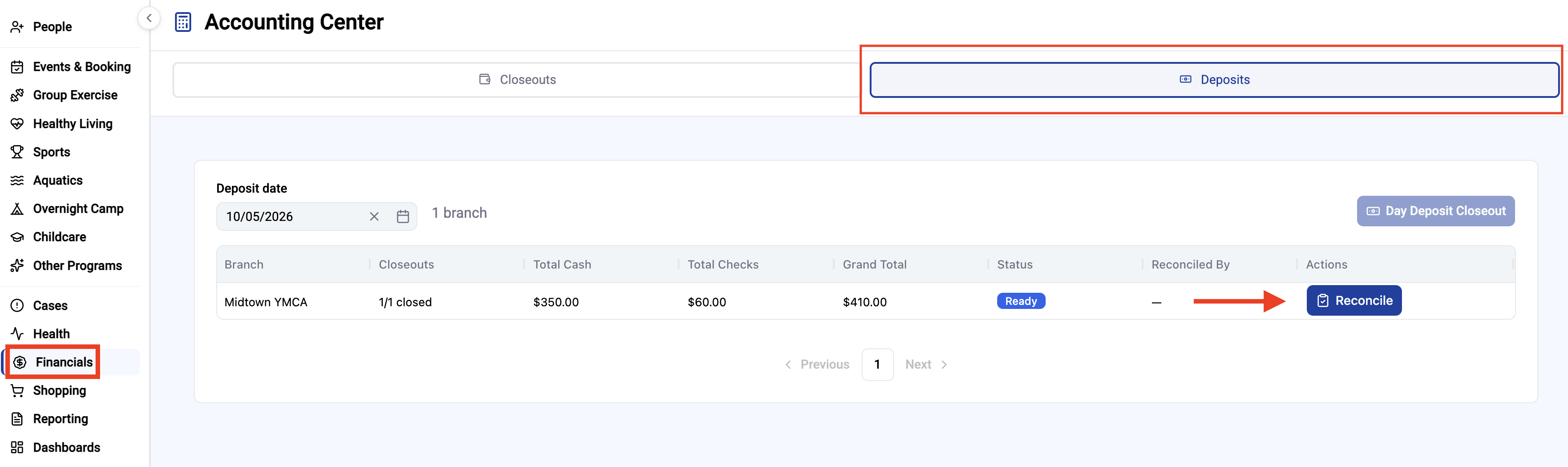
Click Financials in the left rail menu, then click the Deposits tab.
Set the Deposit date if needed. Each branch is listed with its number of closeouts, total cash, total checks, and grand total. A branch that's ready for deposit shows a Ready status.
Click Reconcile for the branch.
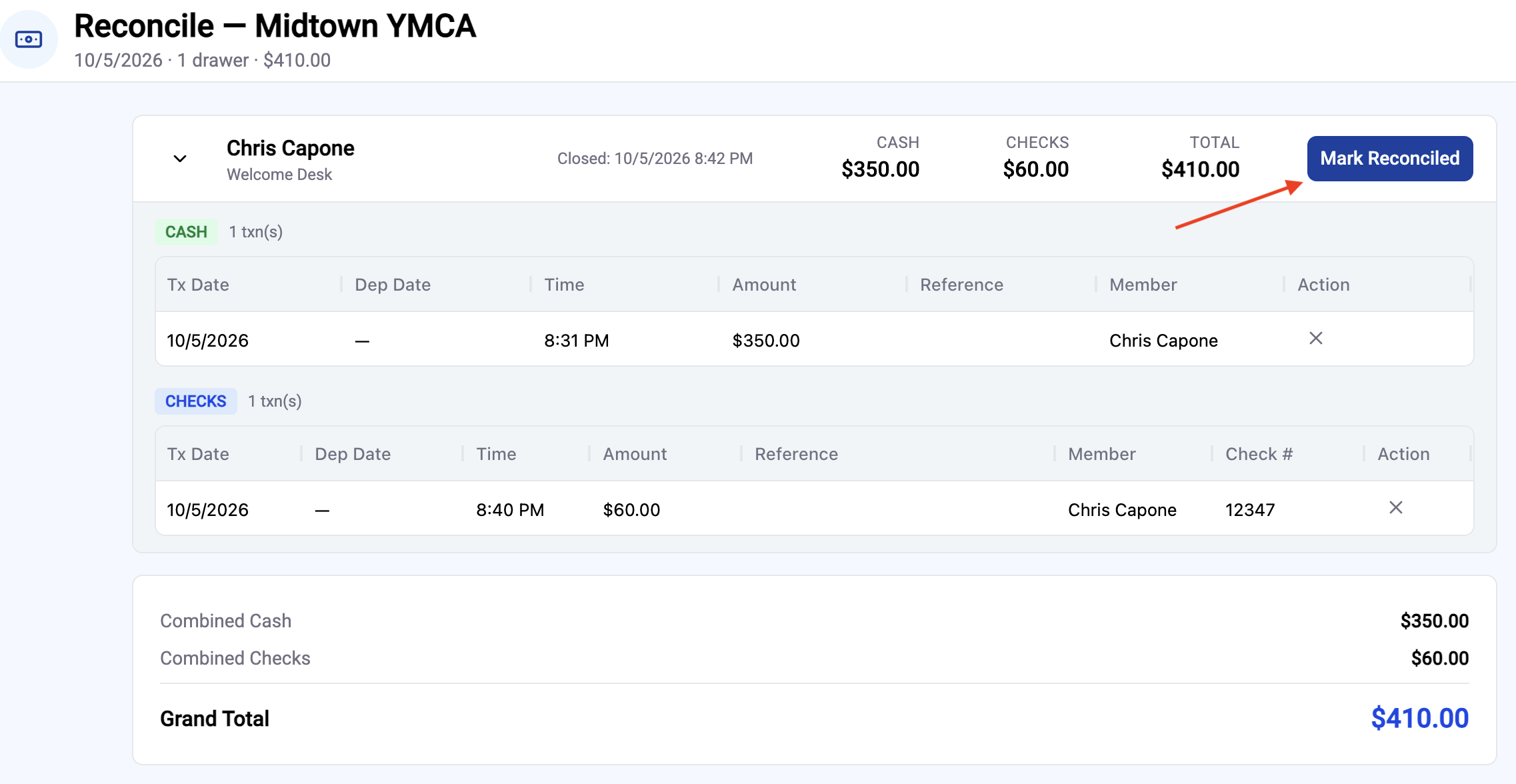
Review each closeout on the list. Expand a closeout to see its individual cash and check transactions. Click Mark Reconciled for each one, then click Done in the upper right.
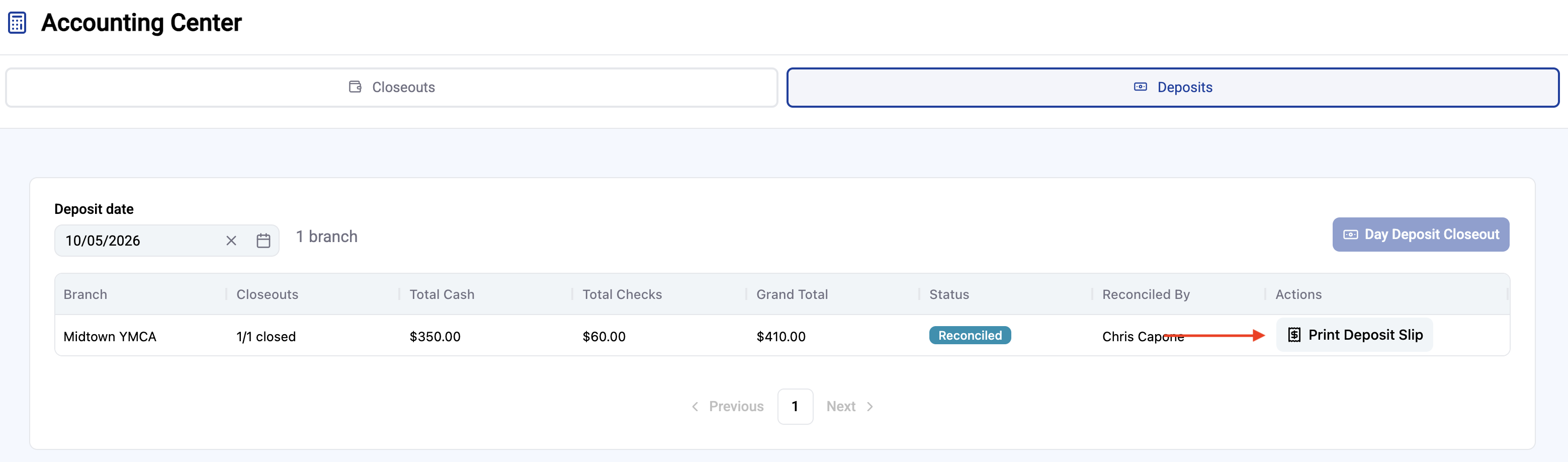
Back on the Deposits list, the branch now shows Reconciled along with your name. Click Print Deposit Slip.
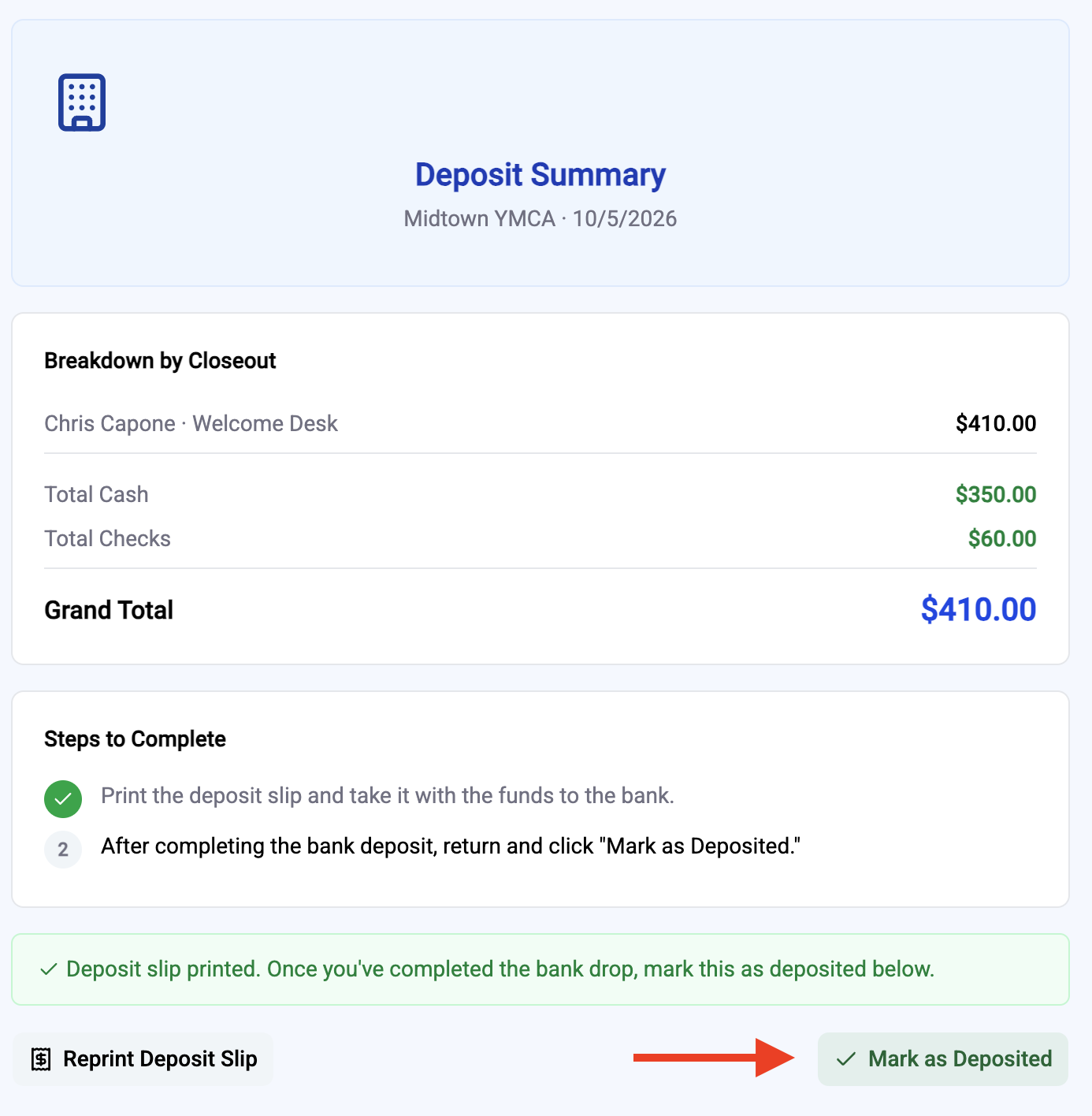
The Deposit Summary shows the breakdown by closeout and the totals. Click Print Deposit Slip and take it to the bank with the funds.
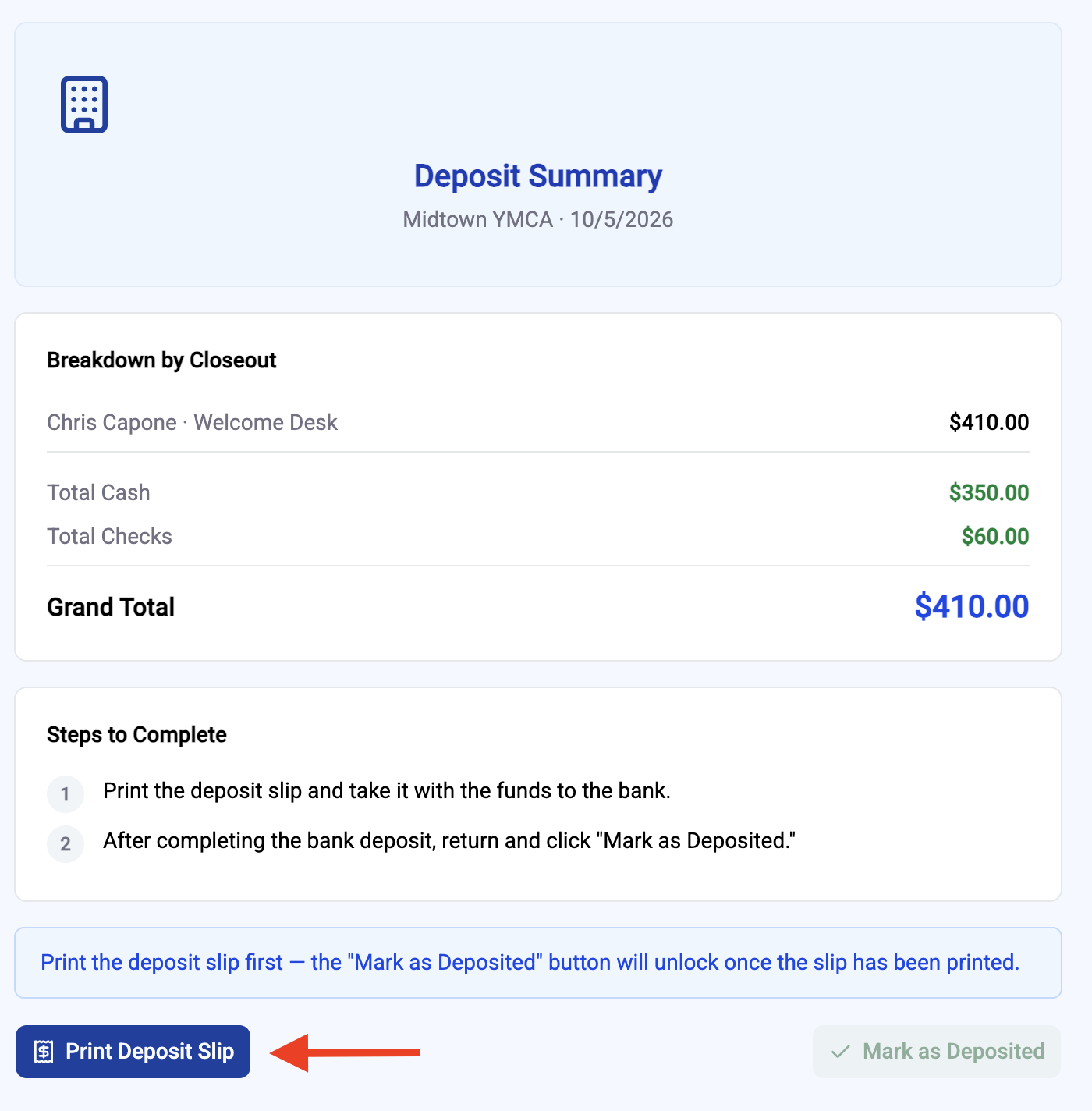
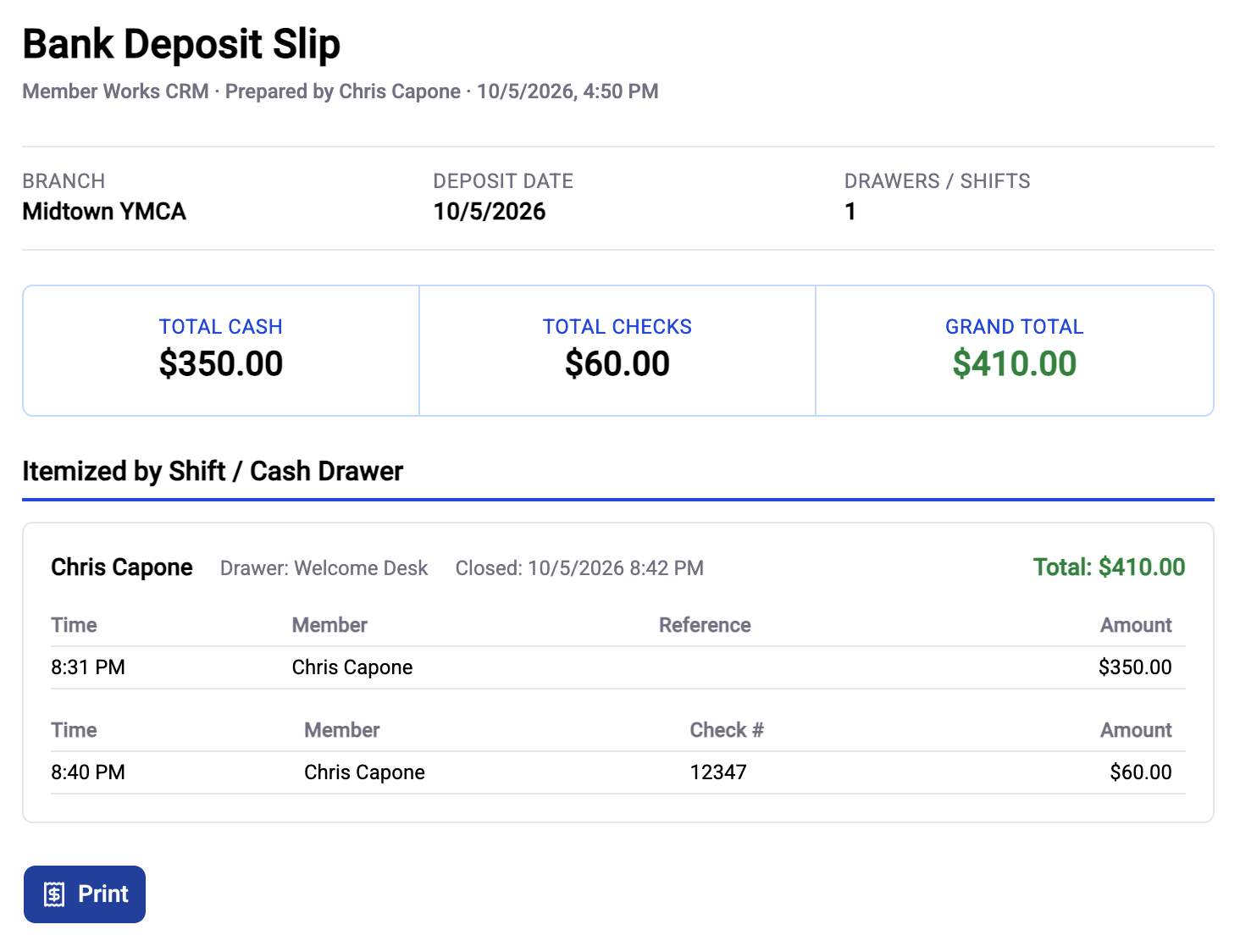
After you've made the bank deposit, return to this screen and click Mark as Deposited. This button stays locked until the deposit slip has been printed. If you need another copy, click Reprint Deposit Slip.
Finalize the Day's Deposits
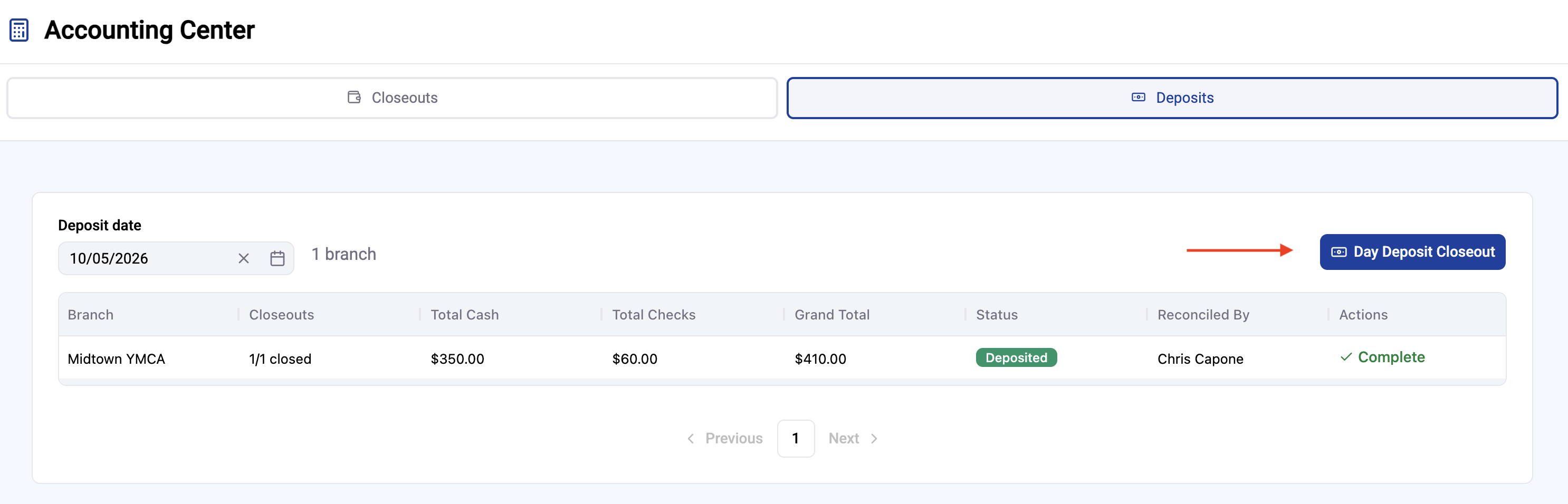
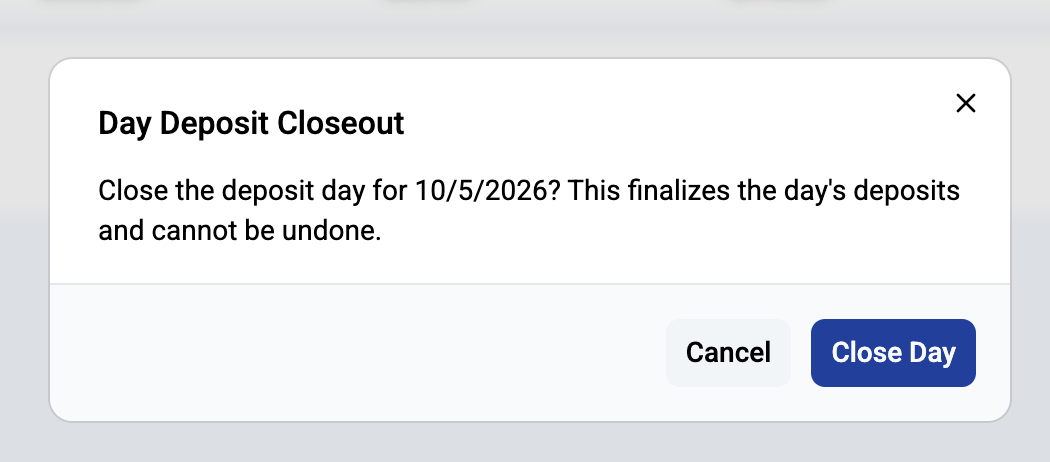
When you are ready to submit the total deposits for the day, click the Day Deposit Closeout button and click Close Day
Tips for the desk
Start your shift when you clock in, even if you don't expect cash.
Don't end your shift just because the desk is quiet. Use Keep shift open if you might still take payments.
If you're handing the drawer to someone else mid-day, end your shift and close out first so each person's count only covers the payments they took.
An old closeout sitting at Open on the Closeouts list usually means someone ended a shift but never finished the count. Let your supervisor know so it doesn't hold up the deposit.