How to Modify or Cancel an Event
Last updated: September 8, 2026
Modifying or canceling an existing event
Finding the event
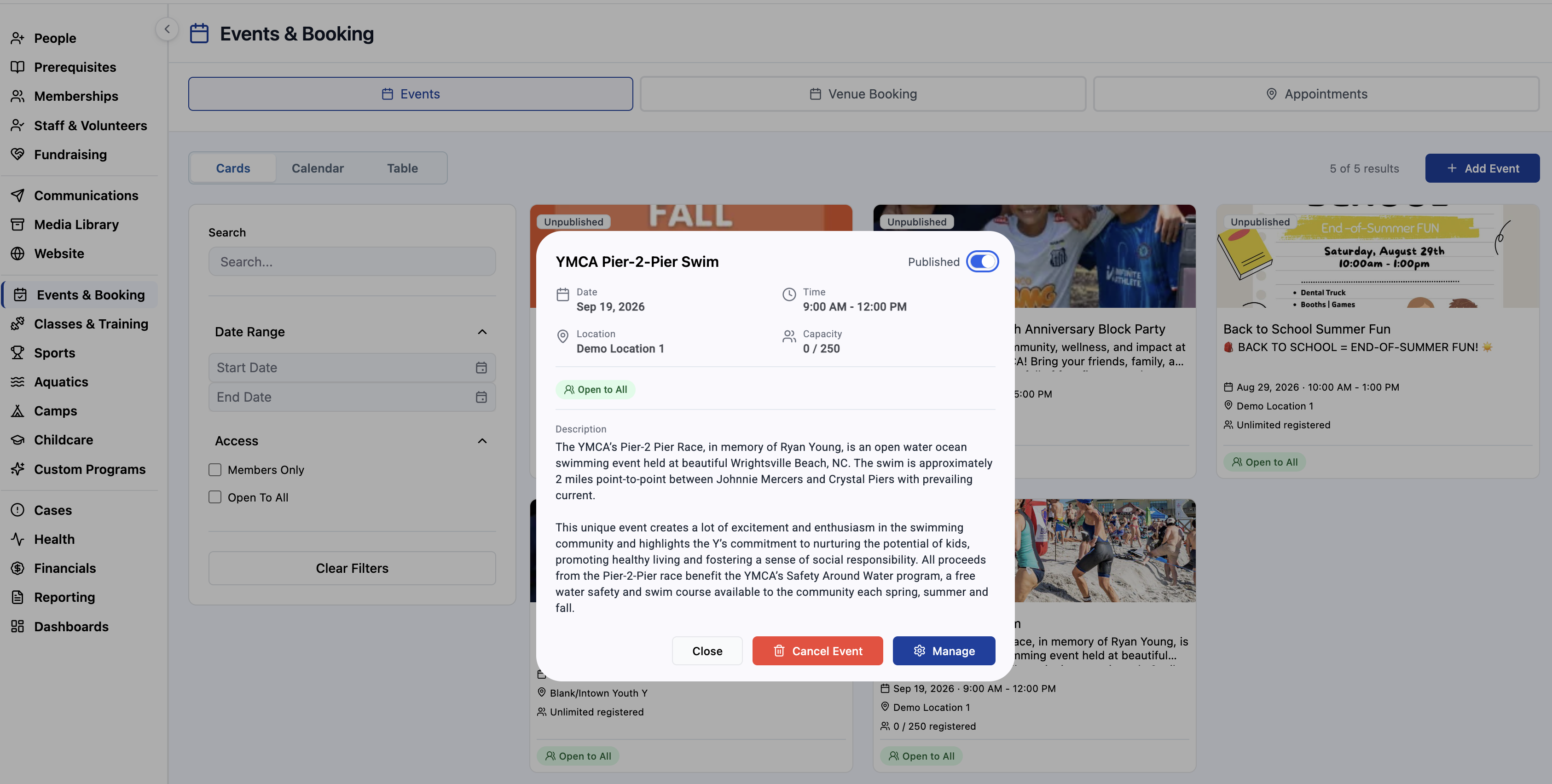
Click Events & Booking in the left rail menu.
Click the Events tab at the top.
Find your event and click the event card.
From the quick view, you have two choices: Cancel Event to cancel it, or Manage to make edits.
Modifying an event
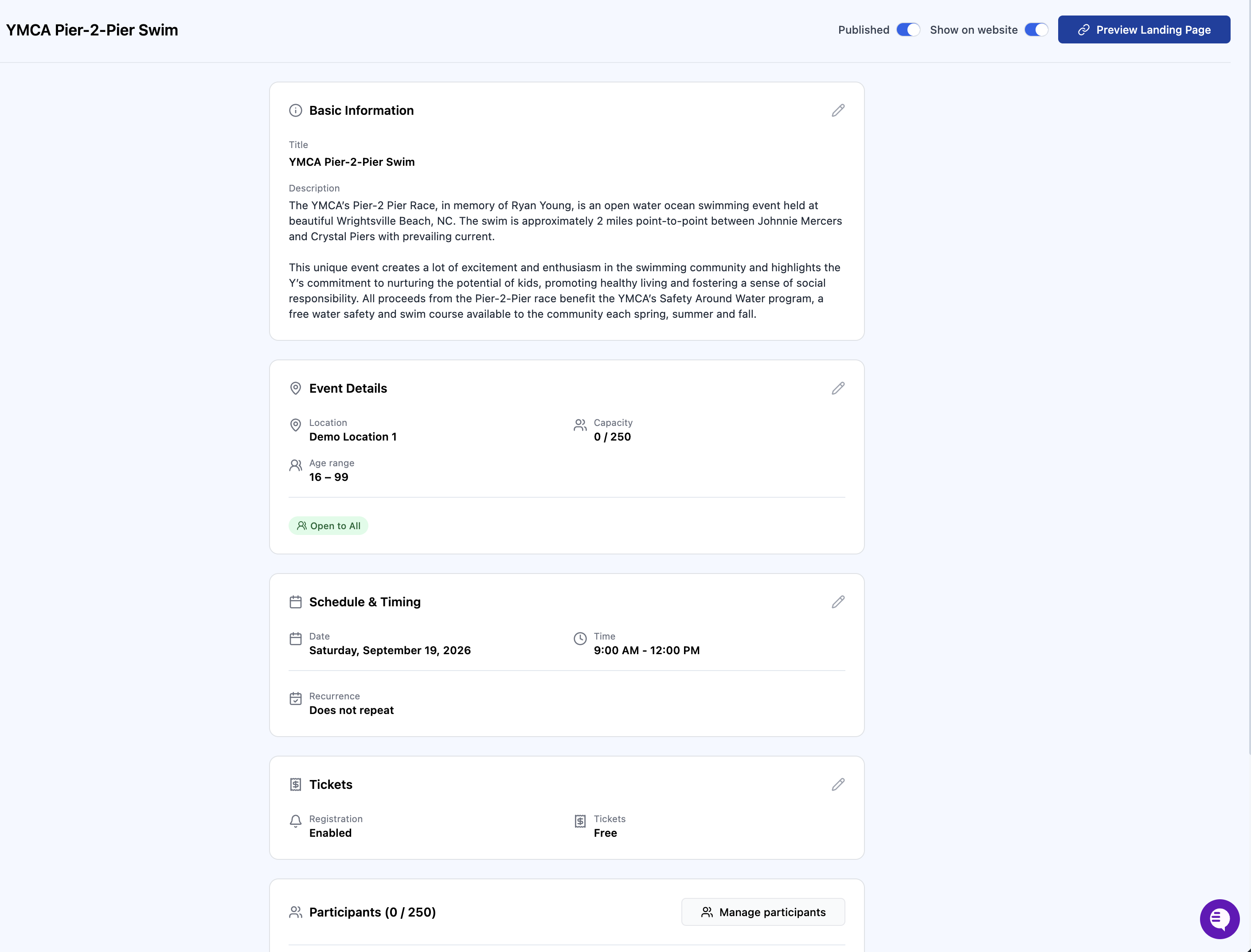
Click Manage in the quick view. This opens the full event page.
Each section has a pencil icon in its upper right corner. Click the pencil on the section you want to change:
Basic Information for the title and description
Event Details for location, capacity, and age range
Schedule & Timing for date, time, and recurrence
Tickets for registration settings and ticket options
Make your changes and save the section.
Click Preview Landing Page in the upper right to see how the event looks to members before you're done.
Two toggles sit at the top of this page. Published controls whether the event is live. Show on website controls whether it appears on your customer website. An event can be published without appearing on the website, which is useful when you want to register people manually or share only a direct link.
You can also publish or unpublish an event straight from the quick view using the Published toggle, without opening the full page.
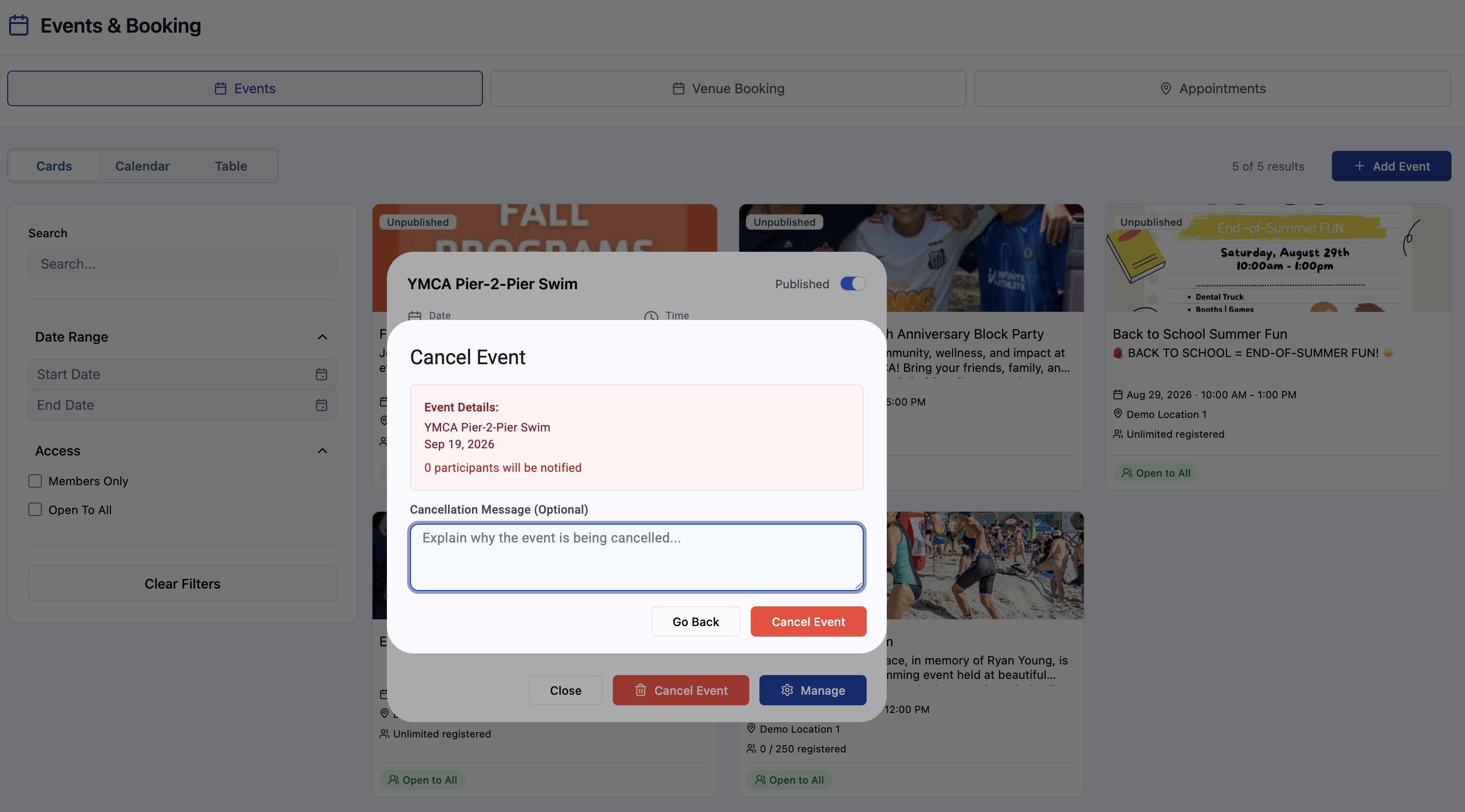
Cancelling an event
Click Cancel Event in the quick view.
A confirmation window opens showing the event name, date, and how many participants will be notified. Check that number before you go further, since it tells you how many people this affects.
Add a Cancellation Message. It's optional, but worth writing. Whatever you type here goes out to registered participants, so use it to explain the reason and say what happens next, such as whether a refund is coming or whether the event will be rescheduled.
Click Cancel Event to confirm, or Go Back if you're not ready.
If you're not sure you want to cancel, consider unpublishing the event instead. Toggling Published off pulls it from the website and stops new registrations without notifying anyone or ending the event, which gives you room to sort out details and republish.